Article Guide
Use these jump points to move through the article faster.
You open your browser, type in your website URL, and something is very wrong. Maybe you see a strange message. Maybe Google is showing a “This site may be hacked” warning. Maybe your homepage has been replaced with something you didn’t put there.
Your first instinct might be to panic. Don’t. A hacked website is stressful — but it’s fixable. Thousands of WordPress sites get cleaned up and restored every single day.
In this guide, you’ll learn exactly how to recover a hacked WordPress website step by step. We’ll cover how to confirm the hack, clean up the damage, restore your site, and make sure it doesn’t happen again. Whether you’re a beginner or an experienced site owner, this guide gives you a clear path forward.
1. How to Confirm Your Site Has Been Hacked
Before doing anything, confirm what you’re actually dealing with. Sometimes what looks like a hack is a plugin conflict or a broken update. Other times it’s much worse.
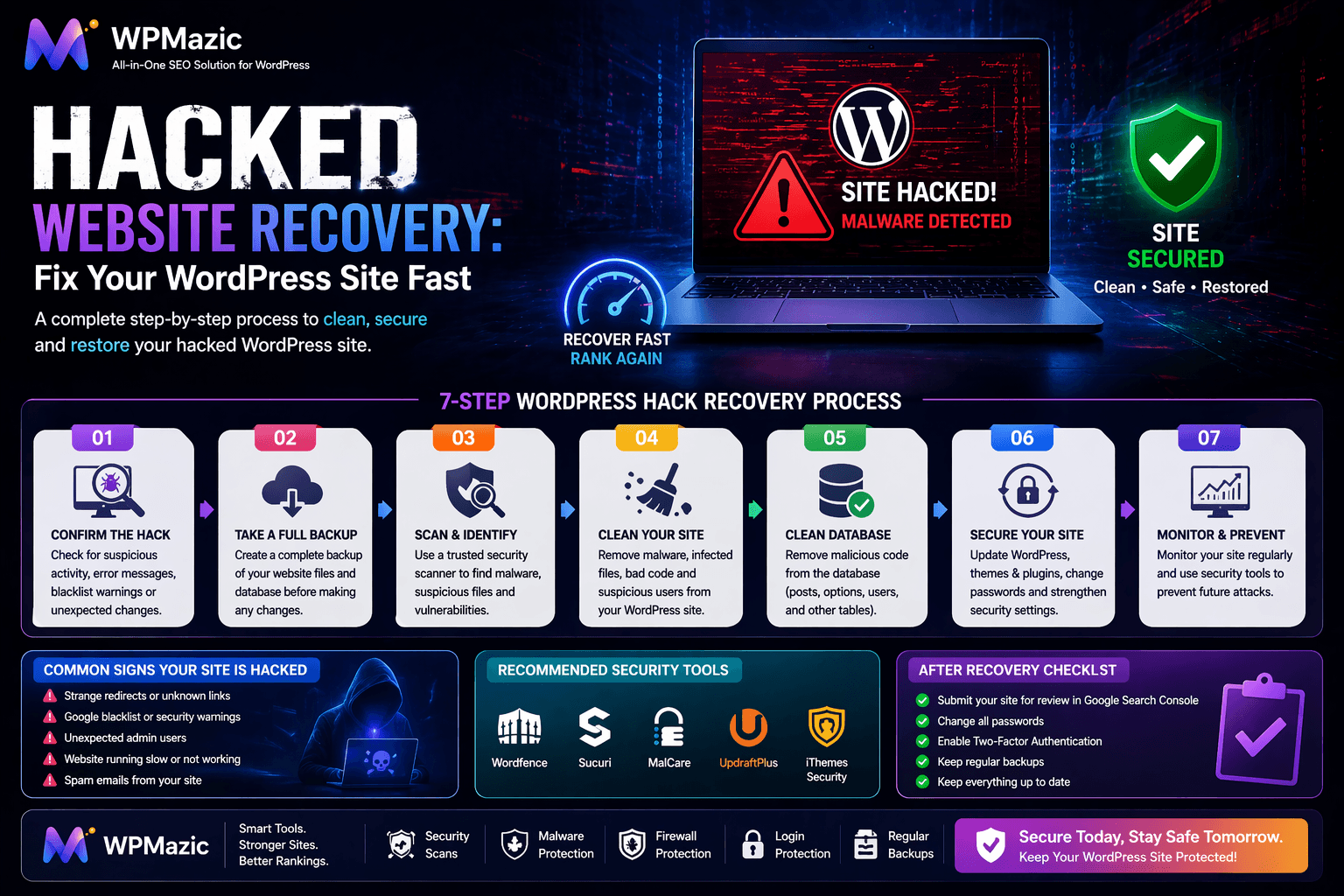
Common signs your WordPress site has been hacked:
- Your homepage is defaced or redirects to another site
- Google Search Console shows a security alert or manual action
- Visitors see a browser warning like “Deceptive site ahead”
- Your hosting provider suspended your account due to malware
- You notice admin accounts you didn’t create
- Your site is sending spam emails
- Pages are loading extremely slowly or timing out
- You find strange files or code in your WordPress directories
- Your search console shows pages or content you didn’t publish
How to verify:
- Run a free scan at Sucuri SiteCheck
- Check Google Search Console for security issues
- Use Google Safe Browsing to check if your URL is flagged
- Ask your hosting provider — they often detect malware before you do
Once you’ve confirmed the hack, move fast but stay calm. Every minute your site is live while infected, it’s potentially harming your visitors and your SEO rankings.
2. Immediate Steps to Take Right Now
Before jumping into the cleanup, take these actions immediately to limit the damage.
Put Your Site in Maintenance Mode
If you can still access your WordPress dashboard, install a maintenance mode plugin and activate it. This prevents visitors from landing on a hacked or infected page while you work on the fix.
If you can’t log in, contact your host and ask them to temporarily suspend public access.
Change All Passwords Immediately
Change every password connected to your site right now — before anything else:
- WordPress admin password
- FTP / SFTP credentials
- cPanel or hosting control panel password
- Database password (in phpMyAdmin + update wp-config.php)
- Email accounts associated with the domain
Use a password manager to generate long, random passwords. Do not reuse any old ones.
Notify Your Hosting Provider
Contact your host immediately. Many hosts have malware detection tools and can isolate your account to prevent the infection from spreading to other sites on shared servers. Some managed hosts also offer free malware cleanup.
Document Everything
Take screenshots of the hacked pages, unusual files, or suspicious accounts before you start cleaning. This helps if you need to investigate how the hack happened.
3. Step-by-Step: How to Clean a Hacked WordPress Site
Step 1: Scan Your Site for Malware
Install Wordfence Security or MalCare and run a full site scan. These tools compare your files against clean WordPress core files and flag anything that doesn’t belong.
If you can’t access your dashboard, use your hosting file manager or connect via FTP and look for suspicious files manually — particularly in:
wp-content/uploads/— PHP files should never be herewp-content/themes/— Check for unfamiliar or modified fileswp-content/plugins/— Look for plugin folders you didn’t install- Root directory — Watch for oddly named
.phpfiles
Step 2: Remove Malicious Files and Code
Delete any files flagged as malicious. For infected legitimate files (like a plugin or theme file with injected code), either:
- Replace them with clean versions downloaded directly from WordPress.org
- Use your security plugin’s one-click malware removal feature (MalCare does this well)
Warning: Don’t just delete files without understanding what they do. Some injected code is hidden inside legitimate-looking files like
functions.php. Deleting the wrong file can break your site further.
Step 3: Clean the WordPress Database
Hackers often inject malicious code directly into the database — inside post content, widget settings, or the options table. Signs include:
- Spam links in your posts or footer
- Strange JavaScript added to your pages
- Redirects happening from pages you don’t control
Use phpMyAdmin to check the wp_options table for suspicious entries, especially the active_plugins and siteurl values. Also search all tables for keywords like eval(, base64_decode(, and <iframe — these are classic malware signatures.
Step 4: Reinstall WordPress Core Files
Go to Dashboard → Updates and click Re-install version X.X.X. This replaces all core WordPress files with fresh, clean versions without touching your content, plugins, or themes.
Alternatively, download a fresh WordPress install from wordpress.org and replace the core files via FTP — but skip the wp-content folder and wp-config.php.
Step 5: Reinstall Plugins and Themes
After removing malicious files, reinstall every plugin and theme from scratch:
- Deactivate and delete all plugins
- Reinstall only the ones you actually need from trusted sources
- Delete all themes except the one you’re using (and reinstall that one fresh too)
- Never reinstall nulled or pirated themes/plugins — they’re almost certainly how you got hacked in the first place
Step 6: Check and Clean User Accounts
Go to Users → All Users and look for:
- Admin accounts you didn’t create
- Accounts with suspicious usernames or email addresses
- Any user role that was changed without your knowledge
Delete any unauthorized accounts immediately. Then reset passwords for all remaining admin accounts.
Step 7: Check File Permissions
Incorrect file permissions can leave the door wide open for future attacks. After the cleanup, verify:
- WordPress folders: 755
- WordPress files: 644
wp-config.php: 400 or 440.htaccess: 644
4. How to Restore from a Backup
If you have a recent clean backup — and it was made before the hack happened — restoring from it is often the fastest and most reliable path to recovery.
How to Know If Your Backup Is Clean
This is the critical question. If your backup was made after the site was already infected, restoring it just brings the malware back. Check the backup date against when you first noticed signs of the hack. When in doubt, go back further.
Restoring via Your Backup Plugin
If you use UpdraftPlus, BlogVault, or a similar plugin:
- Log in to the plugin dashboard (some, like BlogVault, have an external dashboard you can access even if WP is down)
- Select a backup from before the infection date
- Choose what to restore — database, files, or both
- Run the restore and wait for confirmation
Restoring via Your Hosting Control Panel
Most hosts offer their own backup restore feature in cPanel or the hosting dashboard. This is often the fastest option if your plugin-based backup isn’t accessible. Contact your host’s support team if you can’t find it.
Pro Tip: After restoring from backup, immediately run a fresh malware scan to confirm the restored version is actually clean. Then apply all security hardening steps before going live again.
5. What to Do After the Cleanup
Once your site is clean, don’t just flip it back on and move on. Take these steps to make sure the recovery sticks.
Regenerate Security Keys
WordPress uses secret keys and salts to secure cookies and sessions. After a hack, regenerate these. Go to WordPress Secret Key Generator, copy the new keys, and replace the existing ones in wp-config.php. This logs out all active sessions — including any attackers still lurking.
Update Everything
Update WordPress core, all plugins, and all themes to their latest versions immediately. The vulnerability that was exploited may still be present if you skip this step.
Take a Fresh Backup
Once your clean site is verified and live, take a full backup right away. Store it off-site (Google Drive, Dropbox, Amazon S3). This becomes your new clean baseline.
Monitor for Reinfection
Some hacks leave backdoors that survive a surface cleanup. Set up ongoing malware monitoring with a plugin like Wordfence or MalCare and review alerts for at least 30 days after recovery.
Tools like WPMazic SEO can also help you track your site’s health and flag unusual technical changes — useful alongside your security monitoring stack during the recovery period.
6. How to Remove Google’s Blacklist Warning
If Google flagged your site as dangerous, cleaning the malware is only half the battle. You also need to get the warning removed.
Step 1: Verify Ownership in Google Search Console
If you haven’t already, add your site to Google Search Console and verify ownership.
Step 2: Review the Security Issues Report
Go to Security & Manual Actions → Security Issues. This shows exactly what Google found. Review each item and confirm you’ve addressed it.
Step 3: Request a Review
Once your site is clean, click Request Review in the Security Issues section. Google will crawl your site and verify the malware has been removed. This typically takes 1–3 days, though it can take up to a week for complex cases.
Step 4: Check Bing Webmaster Tools Too
Don’t forget Bing. Go to Bing Webmaster Tools and submit a reconsideration request there as well.
Important: Do not request a review until your site is fully clean. If Google recrawls and still finds malware, the review process resets and you’ll wait even longer.
7. How to Prevent Future Hacks
Recovery is exhausting. Prevention is far easier. After you’ve cleaned up, put these protections in place.
- Install a security plugin — Wordfence, MalCare, or Sucuri. Enable the firewall and real-time monitoring.
- Enable two-factor authentication (2FA) — Even a compromised password won’t let anyone in without the second factor.
- Change the default login URL — Use WPS Hide Login to move your login page away from the default
/wp-adminpath. - Keep everything updated — WordPress core, plugins, and themes. Enable auto-updates for security releases.
- Use strong, unique passwords — For every account. A password manager makes this painless.
- Automate off-site backups — Daily backups stored somewhere other than your server.
- Remove unused plugins and themes — Every extra plugin is a potential entry point.
- Switch to a managed WordPress host — Hosts like Kinsta or WP Engine offer built-in security, firewalls, and malware cleanup.
- Harden wp-config.php — Add
define('DISALLOW_FILE_EDIT', true);to prevent file editing from the dashboard. - Monitor regularly — Use tools like WPMazic SEO alongside your security plugin to catch technical anomalies early, before they become full-blown incidents.
8. Common Mistakes During Recovery
Restoring an already-infected backup
The most common recovery mistake. Always verify your backup is from before the hack occurred.
Skipping the database scan
Cleaning only files and ignoring the database leaves malware in place. Many reinfections happen because injected database code re-drops the malicious files.
Not finding the entry point
If you clean the site without understanding how it was hacked, you’re leaving the door open. Was it a vulnerable plugin? A weak password? A nulled theme? Find the root cause and fix it.
Going live too soon
Rushing back online before a full scan and verification risks re-exposing visitors to malware and may delay Google’s review process.
Requesting Google review before cleanup is complete
Google will recrawl your site. If it still finds issues, the review resets. Only submit when you’re certain the site is clean.
Not changing all passwords
Changing only your WordPress admin password and forgetting FTP, hosting, and database credentials leaves other entry points open.
Ignoring reinfection monitoring
Some hacks leave backdoors that survive basic cleanup. Monitor your site closely for 30 days after recovery.
9. Frequently Asked Questions
How do I know if my WordPress site has been hacked?
Common signs include defaced pages, redirect loops, browser security warnings, Google blacklist alerts, unfamiliar admin accounts, spam emails being sent from your domain, or your hosting provider suspending your account. Use Sucuri SiteCheck for a free external scan to confirm.
Can I recover a hacked WordPress site without a backup?
Yes, though it takes more work. You’ll need to manually scan and clean files using a security plugin like MalCare or Wordfence, clean the database via phpMyAdmin, and reinstall WordPress core plus all plugins and themes from scratch. A professional malware removal service (Sucuri, MalCare) is worth considering if the damage is extensive.
How long does it take to recover a hacked website?
With a clean backup, recovery can take as little as 30 minutes to a few hours. Without a backup, manual cleanup typically takes several hours to a full day depending on the extent of the infection. Getting off Google’s blacklist adds another 1–7 days for review.
Will restoring from backup remove the malware?
Only if the backup was made before the hack. If the backup already contains the infected files, restoring it just brings the malware back. Always verify your backup date against when the hack first appeared.
How did my WordPress site get hacked?
The most common causes are: outdated plugins or themes with known vulnerabilities, weak or reused passwords, nulled (pirated) themes or plugins pre-loaded with backdoors, insecure hosting environments, and brute-force attacks on the login page.
Should I hire a professional to clean my hacked site?
If you’re not technical, or if the hack is severe (full database injection, multiple backdoors, custom malware), a professional service is worth it. Sucuri offers a malware removal service with a flat fee and includes a cleanup guarantee. MalCare also offers one-click automated removal for most infections.
How do I remove my site from Google’s blacklist after cleanup?
Go to Google Search Console, navigate to Security Issues, confirm the malware has been removed, and click Request Review. Google typically processes this within 1–3 days. Make sure the site is fully clean before submitting — submitting early and failing resets the clock.
How can I prevent my WordPress site from being hacked again?
Enable a security plugin with a firewall, use two-factor authentication, keep everything updated, use strong passwords, automate off-site backups, remove unused plugins and themes, and consider switching to a managed WordPress host.
10. Conclusion
Finding out your WordPress site has been hacked is one of the worst feelings as a site owner. But it’s not the end. With the right steps — confirming the hack, cleaning the files and database, restoring from a trusted backup, and hardening your site afterward — you can get back online and recover fully.
The key is to act quickly, work methodically, and not skip steps. A rushed cleanup that misses a backdoor just leads to another hack a few weeks later.
And once you’re back up? Make security a habit, not an afterthought. Regular audits, automated backups, a reliable security plugin, and tools like WPMazic SEO to monitor your site’s health can mean the difference between catching a problem early and dealing with a full-blown crisis.
Your site can recover. Start the cleanup today — and build something harder to break this time.