Article Guide
Use these jump points to move through the article faster.
Google Search Console is the single most important free SEO tool available to WordPress site owners — more directly useful than any third-party rank tracker, audit tool, or analytics platform. It’s the only tool that shows you exactly how Google sees your site: which pages are indexed, which keywords your content appears for, what technical problems Google has found, how your Core Web Vitals perform with real Chrome user data, and whether any manual penalties have been applied.
And yet a significant number of WordPress sites either don’t have it set up at all, or have it connected but never actually look at the data. Both situations mean flying blind on the most important feedback loop in WordPress SEO — direct communication from Google about how your site is being found and indexed.
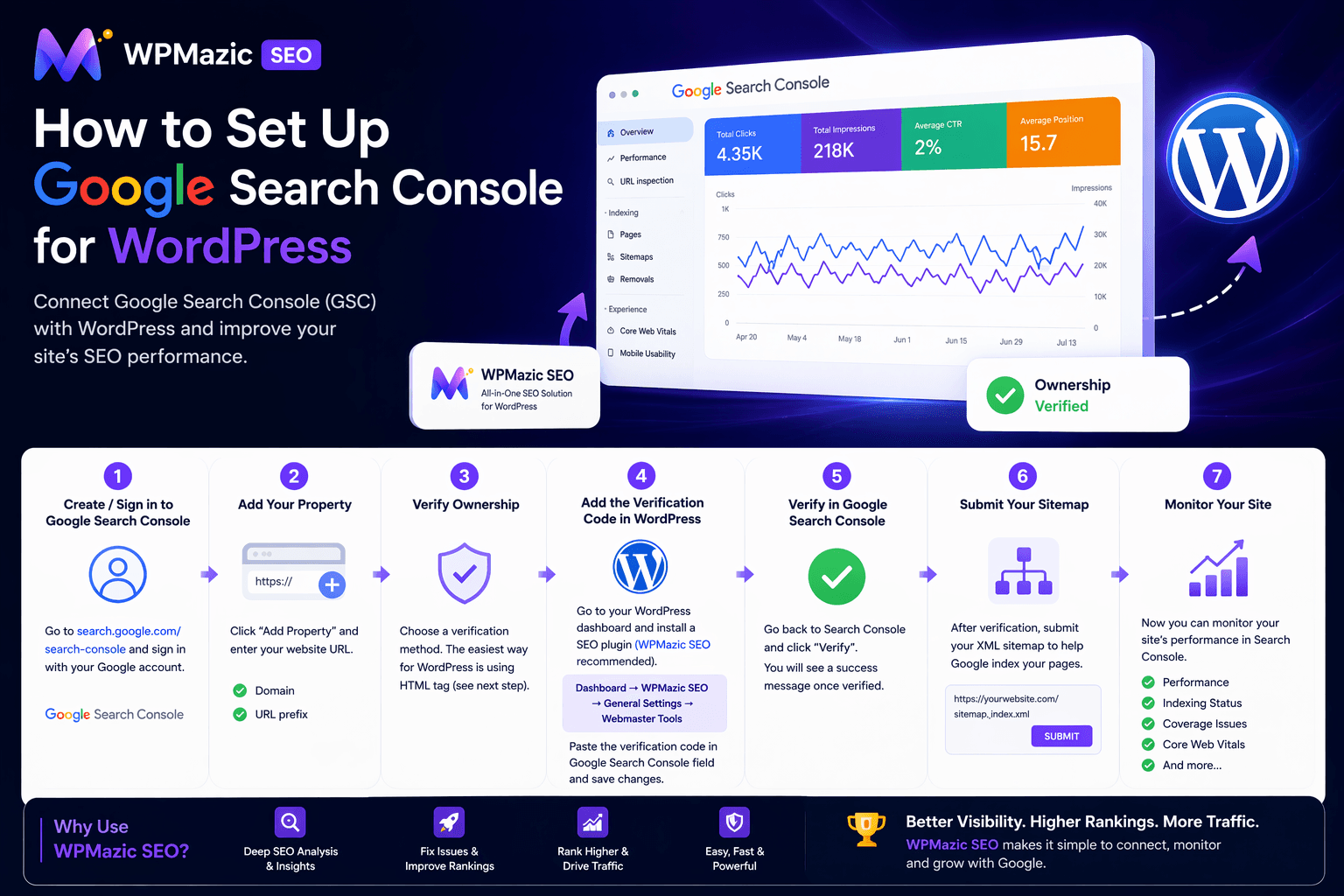
This guide walks you through the complete Google Search Console setup for WordPress from start to finish: creating your property, verifying ownership using WPMazic SEO’s webmaster verification, submitting your sitemap, and then using the six most valuable GSC reports for ongoing SEO improvement. Every step includes exactly where to click and what to look for.
Part 1: Creating Your Google Search Console Property
A GSC “property” is your website’s entry in Google Search Console. One Google account can manage multiple properties — useful for agencies managing multiple client sites, or site owners with multiple domains.
Step 1 — Go to Google Search Console
Open search.google.com/search-console in your browser and sign in with the Google account you want to use for managing your WordPress site’s search presence. Use the same Google account you use for Google Analytics if possible — linking them later is simpler.
[ Google Search Console homepage — click “Start now” to add your first property]
Step 2 — Add a New Property
Click “Add property” (or “Start now” if this is your first property). GSC presents two property types:
[GSC “Select property type” — Domain property (left) vs URL-prefix property (right)]
Domain Property vs URL-Prefix Property — Which to Choose?
Domain property (recommended): Covers your entire domain including all subdomains (www, blog., shop.) and both HTTP and HTTPS. Requires DNS record verification — you add a TXT record to your domain’s DNS settings through your domain registrar (GoDaddy, Namecheap, Cloudflare, etc.). This is the most complete option.
URL-prefix property: Covers only the specific URL you enter — typically just https://yourdomain.com/. Doesn’t automatically include subdomains or the HTTP version. Verification is easier — multiple methods available including the HTML meta tag method that WPMazic SEO handles directly. Choose this if DNS verification feels complex or you want the simplest path.
Recommendation for most WordPress sites: If you’re comfortable with your domain registrar’s DNS settings, use Domain property. If you want the simpler path, use URL-prefix with HTML meta tag verification — the method described in detail below.
Part 2: Verifying WordPress Site Ownership in Google Search Console
Verification proves to Google that you own and control the site you’re adding to Search Console. For URL-prefix properties, the HTML meta tag method is the cleanest approach for WordPress because WPMazic SEO handles it without any code editing.
Method 1 — HTML Meta Tag via WPMazic SEO (Easiest)
This is the recommended method for any WordPress site running WPMazic SEO. You copy a single tag from Google Search Console and paste it into WPMazic SEO’s settings — no file editing, no FTP, no theme modifications required.
Step 1: Get the Verification Code from GSC
- In the “Add a property” screen, select URL-prefix and enter your full site URL:
https://wpmazic.com/ - Click Continue
- Under verification methods, select HTML tag
- Google shows a meta tag that looks like:
<meta name="google-site-verification" content="AbCdEfGhIjKlMnOpQrStUv" /> - Copy only the content value — the long string of letters and numbers between the quotation marks after
content=
[Google Search Console HTML tag verification — copy the content value from the meta tag shown here]
Step 2: Paste into WPMazic SEO
- In your WordPress admin, go to WPMazic SEO → Settings → Webmaster Tools
- Find the Google Search Console verification field
- Paste the verification code (just the content value, not the full meta tag)
- Click Save Changes
[WPMazic SEO → Settings → Webmaster Tools — paste your GSC verification code here]
WPMazic SEO automatically adds this code to your WordPress site’s <head> section on every page — exactly where Google needs to find it for verification.
Step 3: Complete Verification in GSC
- Return to Google Search Console
- Click Verify
- GSC crawls your homepage, finds the meta tag, and confirms ownership
[GSC ownership verified — the green confirmation screen confirms your WordPress site is now connected]
Verification typically completes within 30 seconds. If it fails, the most common reason is caching — your homepage is serving a cached version that doesn’t yet include the new meta tag. Clear your WordPress cache (in your caching plugin, click “Clear All Cache”) and try verification again.
Method 2 — Domain Property via DNS Record
If you chose the Domain property type, GSC provides a TXT record to add to your DNS:
- GSC shows a TXT record value starting with
google-site-verification= - Log into your domain registrar (GoDaddy, Namecheap, Cloudflare, etc.)
- Go to DNS Management for your domain
- Add a new TXT record with: Host = @ (or leave blank), Value = the verification string Google provided, TTL = 3600 (or default)
- Save the DNS record and wait 15–60 minutes for DNS propagation
- Return to GSC and click Verify
DNS verification is more durable than HTML meta tag verification — it survives theme changes, plugin changes, and caching issues. If you ever switch SEO plugins or themes, your GSC verification remains intact because it lives at the DNS level, not in your WordPress files.
Method 3 — Google Analytics / Google Tag Manager
If you’ve already installed Google Analytics 4 or Google Tag Manager on your WordPress site (as described in our GA4 setup guide), you can use these as verification methods:
- Google Analytics: GSC can verify ownership through your existing GA4 tracking code — select “Google Analytics” as the verification method and GSC detects the tracking code already present on your site
- Google Tag Manager: Same principle — if your GTM container snippet is on the site, GSC can verify through it
These methods are convenient if GA4 or GTM is already installed, but they create a dependency — if GA4 or GTM is removed from your site, GSC verification is lost. The HTML meta tag method via WPMazic SEO or DNS record method are more robust long-term.
Part 3: Submitting Your WordPress Sitemap to Google Search Console
After verification, the first action to take in GSC is submitting your WordPress sitemap. A sitemap is a file that lists all your site’s URLs — it helps Google discover your content rather than relying solely on following links to find pages.
Step 1 — Confirm Your Sitemap Exists
WPMazic SEO generates your XML sitemap automatically. Verify it exists by opening your sitemap URL in a browser:
- Try
https://yourdomain.com/sitemap.xml - Or
https://yourdomain.com/sitemap_index.xml
If WPMazic SEO is active, you should see an XML page listing all your content. If not, go to WPMazic SEO → Sitemap Settings and enable the XML sitemap feature.
Step 2 — Submit the Sitemap in GSC
- In Google Search Console, select your property
- In the left sidebar, click Sitemaps (under Indexing)
- In the “Add a new sitemap” field, enter just the sitemap filename:
sitemap_index.xml(GSC automatically prepends your domain) - Click Submit
[GSC Sitemaps — enter your sitemap URL path and click Submit. The table below shows submitted sitemaps and their status]
Step 3 — Read the Sitemap Results
After submission, the Sitemaps section shows a table with your sitemap, its status, and two numbers: Discovered (how many URLs Google found in the sitemap) vs Indexed (how many Google has put in its index).
It’s normal for Indexed to be lower than Discovered — Google evaluates each URL for quality and doesn’t index every page it finds. However, large gaps (e.g., 500 discovered, 50 indexed) signal a quality issue worth investigating through the Coverage report.
Common sitemap errors and what they mean:
- “Couldn’t fetch”: GSC can’t access your sitemap URL — check the URL is correct and the sitemap file is publicly accessible
- “Has errors”: The sitemap XML has formatting problems — regenerate it by deactivating and reactivating WPMazic SEO’s sitemap feature, or check for special characters in post titles that might break XML formatting
- “Success”: Sitemap was read successfully — check the Discovered vs Indexed numbers
Enable IndexNow in WPMazic SEO settings (WPMazic SEO → Sitemap → IndexNow) — this automatically pings search engines every time you publish or update content, accelerating indexing without manual sitemap resubmission.
Part 4: The Six GSC Reports Every WordPress Site Owner Must Use
GSC contains a lot of data. These are the six reports that provide the most actionable intelligence for WordPress SEO — what to look at, what it means, and what to do about it.
Report 1 — Performance: Your Keyword and Traffic Dashboard
The Performance report is your primary window into how WordPress content is performing in Google Search. It shows click and impression data for every page and keyword your site appears for.
[GSC Performance report — the four metric tiles at top and the Queries table showing keywords, clicks, impressions, CTR, and position]
The Four Key Metrics
- Total Clicks: How many times users clicked your results in Google Search in the selected period. This is your actual organic search traffic from Google.
- Total Impressions: How many times your pages appeared in Google Search results. High impressions with low clicks = title/description isn’t compelling enough to earn the click.
- Average CTR: Clicks ÷ Impressions. Industry average is around 3–5% for most positions. If your CTR is below 2%, your title tags and meta descriptions need improvement.
- Average Position: The average SERP position your pages appeared at. Position 1 = top result. Positions 1–3 get the majority of clicks; positions 4–10 are page one but lower CTR; positions 11+ are page two or lower.
How to Use the Performance Report for WordPress SEO
Find quick-win keywords: Click the Queries tab, then add a filter for Average Position between 5–20 (click the filter icon, select “Position,” set to Greater than 4 AND Less than 21). These are keywords where you rank on page one or just below — a content refresh, improved title tag, or additional internal links could push them higher. These are your highest-priority optimization targets.
Find low-CTR opportunities: Sort by Impressions descending, then look at CTR column. Any query with 500+ impressions and CTR below 2% has a click-through problem, not a ranking problem. Click to see which page ranks for it, then improve that page’s title tag and meta description to make it more compelling. Even moving from 1.5% to 3% CTR doubles your clicks from that query without any ranking change.
Find unexpected ranking keywords: Sort by Clicks and scan through queries you didn’t specifically target. These reveal what topics Google associates with your content — potential new post ideas or angles you hadn’t considered.
Track your target keywords: In the Queries filter, search for a specific keyword to see its performance trend over time. After publishing or refreshing a post targeting a keyword, track its position trend in this report to measure improvement.
Page-level analysis: Click the Pages tab instead of Queries to see performance by individual WordPress post/page. Sort by Clicks to see your top traffic-generating pages, or by Position to find your highest-ranking pages. Click any page URL to filter all metrics to just that page — then switch to the Queries tab to see which keywords that specific page ranks for.
Report 2 — Pages (Coverage): Your Indexing Health Dashboard
The Pages report (formerly called Coverage) shows Google’s indexing status for all URLs it’s discovered on your WordPress site. It’s the first place to check when something isn’t ranking or when you suspect indexing problems.
[GSC Coverage/Pages report — the status overview at top and the detailed issue list showing specific indexing problems]
What Each Status Means
Indexed: Pages Google has successfully indexed and can show in search results. Click this to see the full list of indexed pages — a useful sanity check to confirm your most important content is being indexed.
Not indexed — common types:
- “Crawled – currently not indexed”: Google crawled the page but decided not to index it. Often indicates thin content, duplicate content, or low-quality signals. Review these pages — if they’re important posts, improve the content quality or check for duplicate content issues.
- “Discovered – currently not indexed”: Google knows the URL exists (from your sitemap or internal links) but hasn’t crawled it yet. Normal for new content — usually resolves within 1–2 weeks. If persisting longer, use the URL Inspection tool to request indexing.
- “Duplicate without user-selected canonical”: Google found near-duplicate content across multiple URLs and no canonical tag directing which is preferred. Review your WPMazic SEO canonical tag settings for affected pages.
- “Page with redirect”: A URL in your sitemap that redirects rather than loading content. Remove redirected URLs from your sitemap — only submit live content URLs.
- “Excluded by ‘noindex’ tag”: You’ve intentionally set noindex on this page. If it appears here unexpectedly, a page you want indexed has a noindex tag — check WPMazic SEO’s per-page settings for that post.
- “Blocked by robots.txt”: Your robots.txt file is blocking Google from crawling this URL. If the page should be indexed, update your robots.txt via WPMazic SEO’s robots.txt editor to allow crawling.
Errors: Pages Google tried to index but couldn’t access properly. Most common: 404 Not Found (page deleted without redirect), 5xx Server Error (hosting problem), or redirect errors. Each error type in GSC shows example URLs — investigate these first.
Report 3 — Core Web Vitals: Your Performance Health Dashboard
The Core Web Vitals report shows LCP (Largest Contentful Paint), INP (Interaction to Next Paint), and CLS (Cumulative Layout Shift) scores for your WordPress pages based on real Chrome user data — not lab simulations.
[GSC Core Web Vitals report — check both Mobile and Desktop tabs. The issue table shows which specific pages and metrics are failing]
How to Read and Act on Core Web Vitals in GSC
Check the Mobile tab first — Google uses mobile-first indexing, so mobile Core Web Vitals are more important for rankings. Click each issue type to see which specific WordPress pages are affected.
The issue types show which metric is failing:
- LCP issue: Slow loading of the largest content element — usually your hero image or featured image. Fix by compressing images to WebP, adding
fetchpriority="high"to your hero image, and improving server TTFB. - INP issue: Slow response to user interactions — usually caused by heavy JavaScript. Audit your active WordPress plugins for JS-heavy ones and defer non-critical scripts.
- CLS issue: Layout shifts caused by images without defined dimensions or late-loading ads. Add explicit width and height to all images.
After fixing issues, use the URL Inspection tool to request recrawling for affected pages. Core Web Vitals data in GSC updates approximately every 28 days as new real-user data accumulates — monitor monthly after making performance improvements.
Report 4 — URL Inspection: Your Per-Page Diagnostic Tool
The URL Inspection tool lets you examine any specific WordPress page’s indexing status in detail. Enter any URL and GSC returns comprehensive information about how Google sees that specific page.
When to use URL Inspection:
- A post you published isn’t appearing in search results after 2+ weeks
- You made significant changes to a page and want Google to recrawl it
- A page shows as “Crawled – currently not indexed” in Coverage and you want to understand why
- You want to verify a page’s canonical URL from Google’s perspective
What the inspection shows:
- Coverage status: Indexed, Not indexed, or has errors
- Crawl date: When Google last visited this page
- Referring page: How Google discovered this URL
- Canonical URL: What Google considers the canonical — if this differs from your intended canonical, review your WPMazic SEO canonical settings
- Mobile usability: Whether the page has mobile usability issues
- Rendered page: A screenshot of what Google “sees” when it renders your page with JavaScript — useful for detecting JS rendering issues where content doesn’t appear in Google’s crawled version
Requesting indexing: After inspecting, click “Request indexing” to ask Google to crawl the page as soon as possible. Use this after publishing new important posts, after making significant changes to existing posts, or after fixing an indexing issue on a specific page.
Report 5 — Sitemaps: Your Content Discovery Dashboard
The Sitemaps section tracks your submitted sitemaps and their processing status. Beyond the initial submission covered in Part 3, use the Sitemaps report for ongoing monitoring:
- Check that your sitemap was processed successfully after major publishing activity
- Compare Discovered vs Indexed numbers — growing gaps indicate quality issues on newly published content
- Monitor for sitemap processing errors after WordPress core or plugin updates (theme/plugin changes can sometimes break sitemap formatting)
- If you create new content types or post types in WordPress, ensure they’re included in your WPMazic SEO sitemap configuration
Report 6 — Manual Actions and Security Issues: Your Site Health Alerts
These two reports are the ones you hope never to see data in — but you must check them regularly.
Manual Actions: If Google’s human reviewers have found your site violating Google’s guidelines and applied a manual penalty, it appears here. Manual actions significantly suppress rankings — some penalty types apply to specific pages, others to the entire site. The manual action report describes the issue and links to documentation on how to resolve it and submit a reconsideration request.
Security Issues: If Google has detected malware, phishing content, or harmful software on your WordPress site, the Security Issues report shows what was found and when. Security issues trigger a visible warning in Google Search results for your site (“This site may be hacked”) and can cause your pages to be removed from search results entirely. Resolve security issues immediately and submit a review request after confirming the issue is fixed.
Check both reports monthly at minimum. GSC sends email alerts when new manual actions or security issues are detected — ensure your notification settings are configured to receive these at GSC → Settings → Notifications.
Part 5: Connecting Google Search Console to WPMazic SEO Pro
Switching between WordPress and Google Search Console multiple times per day to monitor your SEO performance breaks workflow. WPMazic SEO Pro’s Analytics Connector brings the most actionable GSC data directly into your WordPress admin dashboard.
[WPMazic SEO Pro Analytics Connector — Google Search Console data visible directly inside your WordPress admin dashboard]
Setting Up the WPMazic SEO Pro Analytics Connector
- Go to WPMazic SEO Pro → Analytics Settings
- Click Connect Google Search Console
- Authorize the connection with your Google account
- Select your verified Search Console property from the dropdown
- Save settings
After connection, key GSC metrics appear in your WPMazic SEO dashboard:
- Organic clicks and impressions trend (last 30 days with comparison period)
- Average CTR and position trend
- Top 10 queries by clicks — the keywords actually driving traffic right now
- Top 10 pages by organic clicks — your best-performing content
- Position tracking for your configured focus keywords
The Practical Workflow Benefit
With GSC data in WPMazic SEO, your post-publish SEO routine becomes seamless:
- Open a WordPress post for editing
- Check the WPMazic SEO post panel for current focus keyword analysis
- Review the Analytics dashboard to see if the post’s organic traffic has changed since your last edit
- Identify whether a title tag or meta description change improved CTR
- Adjust WPMazic SEO’s title or meta settings for the post in the same panel
- Save and use the “Request indexing” feature to accelerate recrawling
All of this happens inside WordPress without a single tab switch to an external tool.
Part 6: Advanced GSC Features for WordPress Power Users
Comparing Date Ranges for SEO Impact Measurement
The Performance report supports date range comparison — a crucial feature for measuring the impact of SEO changes. After refreshing a post, improving title tags, or publishing a new pillar post, use date comparison to see before/after performance.
In the Performance report, click the date range selector and choose “Compare” → “Compare to previous period” or “Compare to previous year.” The report shows the absolute and percentage change in clicks, impressions, CTR, and position for the comparison period. Use this to confirm whether your SEO changes are producing measurable results.
Filtering Performance Data by Search Type
GSC tracks different types of Google Search appearances. Use the “Search type” filter in the Performance report to see:
- Web: Standard organic search results (default view — use this for most analysis)
- Image: Clicks from Google Image Search — useful if you’ve implemented image sitemap and image SEO optimizations
- Video: Clicks from Google Video Search — relevant if your WordPress posts embed videos
- Discover: Traffic from Google Discover feed (appears for high-authority sites with engaging content)
- News: Traffic from Google News — relevant for news publishers who’ve submitted a News Sitemap via WPMazic SEO Pro
Rich Results Status Monitoring
If you’ve implemented schema markup via WPMazic SEO Pro’s Schema Builder (FAQ schema, HowTo schema, Product schema, Article schema), the Enhancements section in GSC shows rich result status for each schema type.
In the left sidebar, look for specific enhancement types that appear based on your implemented schema:
- FAQ results: Shows valid/warning/error counts for FAQPage schema — check after implementing FAQ schema on any post
- HowTo results: Status for HowTo schema on tutorial posts
- Sitelinks searchbox: If Google has granted your site a search box in branded search results
- Breadcrumbs: Status of BreadcrumbList schema
Any errors in these reports prevent rich results from showing — fix errors in WPMazic SEO Pro’s Schema Builder and use the URL Inspection tool to request recrawling for affected pages.
Exporting GSC Data for Reporting
All GSC reports can be exported to Google Sheets or CSV via the download icon in the top-right of each report view. For agencies generating monthly SEO reports for clients, export the Performance report data for each client’s GSC property and combine with GA4 data for comprehensive reporting.
For automated reporting, WPMazic SEO Pro’s email reports include GSC performance summaries — configure these in WPMazic SEO Pro’s Email Reports settings to deliver weekly or monthly summaries to your inbox or your clients’ inboxes without manual export.
Google Search Console WordPress Setup Checklist
Initial Setup
- Google Search Console property created at search.google.com/search-console
- Property type selected (Domain or URL-prefix)
- Verification completed — HTML meta tag via WPMazic SEO, DNS record, or GA4/GTM
- Verification status confirmed: “Ownership verified” shown in GSC
Sitemap
- XML sitemap generating correctly at yourdomain.com/sitemap_index.xml
- Sitemap submitted in GSC → Sitemaps and showing “Success” status
- IndexNow enabled in WPMazic SEO for automatic search engine pinging on publish
- Sitemap Discovered vs Indexed numbers reviewed (no large unexplained gap)
Reports to Review Monthly
- Performance report: Top queries sorted by impressions — any low-CTR issues?
- Performance report: Queries in positions 5–20 identified for optimization
- Pages/Coverage report: Any new “Error” or unexpected “Not indexed” status URLs?
- Core Web Vitals report: Any “Poor” or “Needs improvement” pages added?
- Manual Actions: Confirm no penalties (should show “No issues detected”)
- Security Issues: Confirm no security alerts (should show “No issues detected”)
Ongoing Workflow
- URL Inspection used after publishing important new posts (request indexing)
- GSC connected to WPMazic SEO Pro Analytics Connector for in-dashboard monitoring
- GSC linked to Google Analytics 4 property (Admin → Search Console Links in GA4)
- Rich results enhancements checked after adding schema to posts
- Email notifications enabled in GSC for manual actions and security alerts
Google Search Console is a long-term relationship, not a one-time setup. The setup steps in this guide get you connected and configured — but the value compounds as you use the reports consistently: finding keywords to optimize, catching indexing problems before they become traffic losses, measuring the impact of your SEO changes, and staying informed about any technical issues Google detects on your WordPress site.
Check it monthly as a minimum. Weekly for active SEO campaigns. The data in GSC is the most reliable SEO feedback available — it comes directly from Google about how Google sees your site. No other tool can replicate that signal.
Connect GSC to WPMazic SEO Pro’s Analytics Connector to bring the most actionable performance data into your WordPress admin, where you do your SEO work — so the insight and the action happen in the same place.
→ Connect Google Search Console to your WordPress SEO dashboard. Explore WPMazic SEO Pro with built-in Analytics Connector and IndexNow.