Article Guide
Use these jump points to move through the article faster.
Every WordPress site changes over time. Posts get renamed, categories get restructured, URLs get cleaned up, hosting gets migrated, and content gets deleted. Each of these changes — without proper redirect management — silently leaks the SEO authority you’ve built, breaks inbound links, and frustrates visitors who land on 404 pages instead of the content they were looking for.
Redirect management isn’t glamorous. It doesn’t show up in a traffic spike the day you configure it. But it’s the quiet infrastructure that keeps your site’s link equity intact across every change you make. A site with consistently managed redirects accumulates and preserves authority over time. A site where redirects are an afterthought progressively loses it.
This guide covers everything about WordPress redirect management — the technical concepts behind different redirect types, how to set up and manage redirects in WordPress, how to monitor and fix 404 errors, how to handle migrations at scale, and how WPMazic SEO Pro’s redirect manager centralizes all of this from your WordPress admin.
Part 1: HTTP Redirect Types — What Each One Means and When to Use It
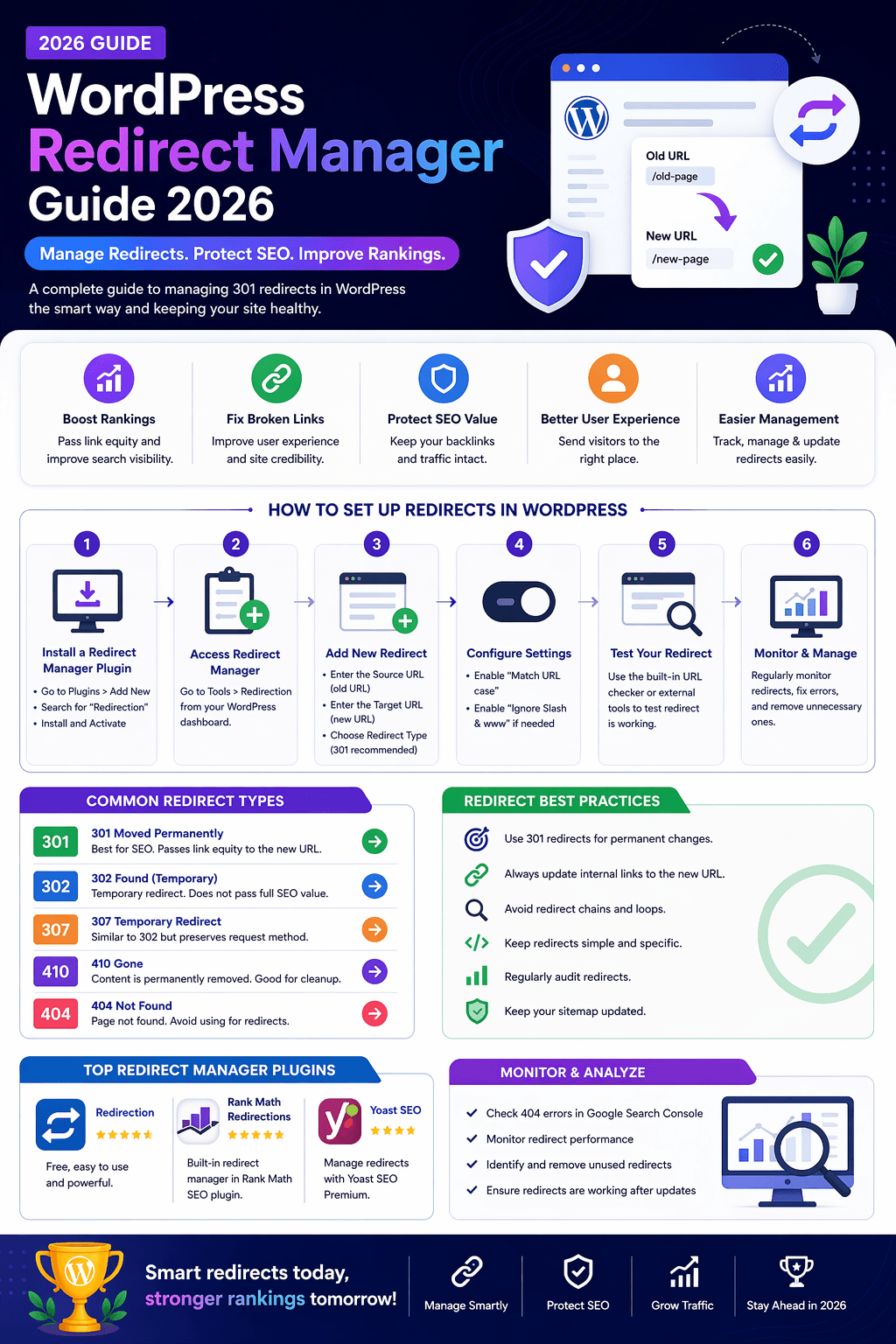
HTTP status codes tell browsers and search engine bots what’s happening when they request a URL. Understanding which code to use in each situation prevents common redirect mistakes that cost SEO authority.
301 — Moved Permanently
The 301 is the workhorse of SEO redirect management. It tells browsers and search engines: “This content has permanently moved to a new location.” Google transfers the majority of link equity (the ranking signals) from the old URL to the new one and updates its index to reflect the new URL.
Use 301 for: Any permanent URL change — slug changes, domain migrations, HTTPS enforcement, URL structure reorganization, consolidating multiple pages into one, removing the /category/ prefix from URLs.
302 — Found (Temporary Redirect)
A 302 tells search engines: “The original URL is still the canonical version. I’m temporarily sending you somewhere else.” Link equity stays at the original URL rather than transferring to the destination.
Use 302 for: Genuine temporary redirects — A/B testing alternate page versions, maintenance pages that will be removed, short-term promotional landing pages. Never use 302 for permanent URL changes.
307 — Temporary Redirect (HTTP Method Preserved)
Similar to 302 but explicitly preserves the HTTP method of the original request (GET, POST, etc.). Relevant for API endpoints or form submissions where the request method matters. Rarely needed for standard WordPress content redirects.
308 — Permanent Redirect (HTTP Method Preserved)
The permanent version of 307 — preserves HTTP method while indicating a permanent move. Like 307, mainly relevant for API and form use cases rather than standard content redirects.
410 — Gone
A 410 tells search engines: “This page no longer exists and is not coming back.” Unlike a 404 (which Google treats as potentially temporary), a 410 instructs crawlers to remove the URL from their index immediately.
Use 410 for: Deliberately deleted content you don’t want to redirect anywhere — spam pages that somehow got indexed, old thin content you’re removing as part of a content audit, discontinued products with no relevant replacement.
451 — Unavailable for Legal Reasons
Indicates content was removed due to legal requirements (copyright, court order, regulatory compliance). Rare in standard WordPress use, but available in WPMazic SEO Pro’s redirect manager for sites that need to handle legal compliance redirects.
Part 2: Setting Up Redirects in WordPress
There are three main ways to implement redirects in WordPress, each with different trade-offs in terms of convenience, performance, and complexity.
Method 1: WPMazic SEO Pro Redirect Manager (Recommended for Most Sites)
WPMazic SEO Pro includes a full redirect manager as part of its core SEO platform — not as a separate plugin, not as a bolt-on feature, but as an integrated component of your SEO workflow. This means your redirect management lives in the same dashboard as your sitemap, schema, and indexation controls.
Creating a single redirect:
- In your WordPress admin, go to WPMazic SEO → Redirects
- Click Add New Redirect
- Enter the Source URL (the old URL — can be a relative path like /old-slug/ or a full URL)
- Enter the Destination URL (the new URL where visitors should be sent)
- Select the redirect type (301 for permanent, 302 for temporary)
- Save
Bulk import via CSV: For migrations or restructuring involving many URLs, export your redirect mapping spreadsheet as a CSV with columns for Source URL, Destination URL, and Redirect Type, then import through the redirect manager. This creates hundreds of redirects simultaneously — the practical difference between a one-hour task and a multi-day manual process.
Sitewide redirect patterns (Pro): Pattern-based redirects apply a single rule to entire URL structures using regex or simple string matching. If your old site used /blog/post-name/ URLs and your new structure uses /post-name/, a single sitewide pattern rule handles every URL matching that pattern — without individual redirect rules per post.
404 monitor integration: When the 404 monitor detects a broken URL, you can create the redirect directly from the monitor dashboard with a single click. No need to switch between tools — the monitoring and resolution workflow is unified.
Method 2: .htaccess File (Apache Servers)
For sites on Apache web servers, redirect rules can be added directly to the .htaccess file in your WordPress root directory. This method executes redirects at the server level — before WordPress even loads — making it slightly faster than plugin-based redirects for high-traffic URLs.
Access your .htaccess file via FTP (using FileZilla or similar) or your hosting control panel’s File Manager. It should already contain WordPress’s standard rewrite rules. Add redirect rules above or below the WordPress block, but not inside the # BEGIN WordPress and # END WordPress comment markers (WordPress overwrites that section).
Basic single URL redirect:
Redirect 301 /old-page-slug/ https://yourdomain.com/new-page-slug/Pattern-based redirect using RewriteRule (removes /blog/ prefix from all URLs):
RewriteEngine On
RewriteRule ^blog/(.*)$ /$1 [R=301,L]
Important .htaccess precautions: Always back up your current .htaccess before editing. A syntax error can take your site down. Test on staging first. For non-developers, plugin-based redirect management (WPMazic SEO Pro) is much safer.
Method 3: nginx Server Configuration
For WordPress sites on nginx servers (common on VPS setups, some managed hosts), redirect rules go in the nginx server block configuration file rather than .htaccess — nginx ignores .htaccess files entirely.
Basic nginx redirect:
server {
    return 301 https://yourdomain.com/new-page-slug/;
}
This requires server access and an nginx configuration reload after changes. For most WordPress site owners, plugin-based redirect management remains the practical choice regardless of server type, since it doesn’t require server access for day-to-day redirect operations.
Part 3: The 404 Monitor — Your Redirect Intelligence System
Proactive redirect management is half the job. The other half is reactive — identifying 404 errors that appear as your site evolves and creating redirects to fix them before they accumulate into significant link equity loss.
Why 404 Errors Matter for WordPress SEO
A 404 error means a requested URL doesn’t exist on your server. For users, it’s a dead end. For search engines, it signals that a page they previously indexed no longer exists. For your SEO:
- Lost link equity: External backlinks pointing to a 404 URL are passing authority into nothing. Every day a high-backlink page stays as a 404 is a day that authority isn’t helping your rankings.
- Wasted crawl budget: Google continues trying to crawl URLs it finds in its index or through external links. 404 errors consume crawl budget without producing any indexable content.
- Negative user experience signals: Users who follow links expecting content and land on a 404 page immediately leave. High bounce rates from 404 traffic are a negative engagement signal.
- Lost internal link equity: If your own site’s internal links point to 404 URLs, you’re directing crawl resources to dead ends and failing to distribute internal link equity to live pages.
WPMazic SEO Pro’s 404 Monitor
WPMazic SEO Pro’s 404 Monitor logs every 404 error that occurs on your site with:
- The requested URL that returned 404
- The referrer URL (where the request came from — external backlinks, internal pages, or direct)
- The number of times that URL has been requested (helps prioritize which 404s to fix first)
- Timestamps of when the errors occurred
The referrer data is particularly valuable. A 404 with a referrer showing an external high-authority site means a backlink is pointing to your broken URL — that’s a high-priority redirect to create immediately. A 404 with an internal page referrer means one of your own pages has a broken internal link — fix both the redirect and the source link.
From the 404 monitor dashboard, you can create a redirect for any logged error with a single action — no need to navigate to the redirect manager separately. This unified workflow means the time between “404 detected” and “redirect created” is minutes rather than hours.
Using Google Search Console for 404 Monitoring
Google Search Console’s Pages report (under Indexing) shows URLs returning 404 or other error status codes that Google has tried to crawl. Filter by “Not Found (404)” to see all 404 URLs in Google’s index. This is particularly valuable for identifying 404s on URLs that have external backlinks — Google’s report often shows 404s that your internal traffic never triggers (because no internal links point to them) but that are costing you backlink equity.
Export this list regularly and cross-reference against your 404 monitor log. Prioritize creating redirects for any URLs appearing in both — they’re being actively crawled by Google and have lost traffic pointing at them.
Part 4: Redirect Chains — The Hidden Performance and SEO Tax
Redirect chains are the most commonly overlooked redirect management problem on WordPress sites that have been active for more than a year or two. They form naturally as URL changes accumulate — an old slug redirects to a newer slug, which then gets changed again and redirects to a third slug. The result is URL A → URL B → URL C, requiring two HTTP round trips instead of one.
Why Redirect Chains Are an SEO Problem
- Link equity dilution: A direct 301 redirect passes approximately 90–99% of link equity. Each additional hop in a chain passes a reduced proportion of what the previous hop passed — the equity signal diminishes with each link in the chain.
- Page load latency: Each redirect hop requires a separate HTTP round trip. On a slow network, each hop adds 50–200ms of load time. Three-hop chains can add 150–600ms before the final page even starts loading — a significant LCP impact.
- Crawler efficiency: Google’s bots can follow redirect chains but with reduced efficiency. Googlebot has a finite crawl budget per domain. Chains waste crawl budget on intermediate hops that serve no content.
Finding Redirect Chains on Your WordPress Site
Method 1: Screaming Frog SEO Spider
Crawl your site with Screaming Frog. Go to Reports → Redirect Chains. This shows every URL that requires more than one redirect to reach its final destination, along with the full chain path. Free version crawls up to 500 URLs. Paid version for larger sites.
Method 2: HTTP Header Checker
For individual URLs you suspect are chained, use a browser extension or online HTTP header checker (httpstatus.io) to see the full redirect chain from the original URL to the final destination.
Method 3: WPMazic SEO Pro Redirect Manager
Review your configured redirects in the redirect manager for any rules where the destination URL is itself a source URL in another redirect rule — these are chain candidates. Update the first redirect’s destination to skip the intermediate URL and point directly to the final one.
Fixing Redirect Chains
The fix is always the same: update the first redirect in the chain to point directly to the final destination URL, eliminating the intermediate hops. In WPMazic SEO Pro’s redirect manager:
- Identify chain: URL A → URL B → URL C
- Edit the redirect for URL A and change its destination from URL B to URL C
- The chain is resolved — URL A now redirects directly to URL C in a single hop
- Leave URL B → URL C in place (it may still be linked from other sources)
After fixing chains, verify with Screaming Frog that no chains remain. Re-run this audit after every site migration or significant URL restructuring.
Part 5: Sitewide Redirect Patterns — Managing URL Structure Changes at Scale
Individual redirect rules work well for specific, one-off URL changes. But when you’re changing URL patterns across your entire site — removing a category prefix, switching from trailing slash to no trailing slash, restructuring content directories — you need pattern-based rules that apply to entire groups of URLs with a single configuration.
When Sitewide Redirects Are Necessary
- Changing WordPress permalink structure (e.g., /%category%/%postname%/ to /%postname%/)
- Removing or adding the /blog/ directory prefix to all posts
- Switching from www to non-www (or vice versa)
- Enforcing HTTPS across all HTTP URLs
- Redirecting an old subdomain to a new URL structure
- Consolidating multiple URL patterns to a single canonical structure
Sitewide Redirects in WPMazic SEO Pro
WPMazic SEO Pro’s Sitewide Redirects feature lets you create pattern-matching redirect rules that apply to any URL matching the defined pattern, without needing individual rules per URL. You can define patterns using simple string matching or regex for more complex patterns.
Example: Redirecting all /blog/ URLs to the root path:
- Source pattern: /blog/(.*)
- Destination: /$1 (the captured path component)
- Type: 301
This single rule handles every URL starting with /blog/ — whether you have 10 posts or 10,000. Any request to /blog/post-name/ redirects to /post-name/ automatically without additional configuration.
Caution with sitewide patterns: Test pattern-based redirects thoroughly on staging before applying to production. An overly broad pattern can accidentally redirect URLs you intended to keep live. Always test your regex or pattern matching against a sample of actual URLs before activating.
Part 6: WordPress Redirect Management for Common Scenarios
Scenario 1: Changing a Post Slug After Publication
You published a post with a less-than-ideal URL (/wordpress-seo-tips-2024/) and want to update it to a better slug (/wordpress-seo-guide/). WordPress changes the URL when you edit the post slug, but the old URL becomes a 404 immediately — any internal or external links using the old URL break.
The fix: Before or immediately after changing the slug in WordPress, create a 301 redirect from the old URL to the new URL in WPMazic SEO Pro’s redirect manager. Also update any internal links pointing to the old URL across your site using a search in the WordPress database (Plugins → Better Search Replace or a direct database query).
Scenario 2: Deleting a Post or Page
When you delete a WordPress post or page, its URL returns 404 immediately. Before deleting:
- Check if the page has any external backlinks (Ahrefs or GSC Links report)
- Check if any internal pages link to it (Screaming Frog crawl)
- If it has backlinks or internal links: create a 301 redirect to the most relevant live page before deleting
- If it has no external links or internal links and no traffic: let it 404 naturally (a clean 404 is better than a redirect to an irrelevant page)
Scenario 3: Site Migration with URL Structure Changes
Moving from one hosting provider to another while changing your URL structure requires bulk redirect implementation. The process:
- Crawl the old site and export all URLs
- Build a URL mapping spreadsheet (old URL → new URL → 301)
- Import the mapping as a CSV into WPMazic SEO Pro’s redirect manager
- Verify a sample of redirects on staging before launch
- Enable the 404 monitor immediately after launch to catch any mapping gaps
Scenario 4: Merging Two WordPress Sites
When consolidating two WordPress sites into one, every URL from the absorbed site needs either a redirect to its equivalent on the main site, or a 410 if there’s no equivalent. This is a large-scale redirect operation best handled through bulk CSV import in WPMazic SEO Pro rather than manual entry. Prioritize redirecting pages with backlinks and existing organic traffic — these have the most SEO equity to preserve.
Scenario 5: HTTP to HTTPS Migration
Converting from HTTP to HTTPS means every URL on your site technically changes. The standard implementation:
- Install SSL certificate (usually through your hosting provider)
- Update WordPress Address and Site Address to https:// in Settings → General
- Add HTTPS enforcement redirect in .htaccess or your SEO plugin settings
- Run a database search-and-replace to update all internal links from http:// to https://
- Submit the updated sitemap in Google Search Console
- Monitor for mixed content warnings (HTTP resources loading on HTTPS pages)
WPMazic SEO Pro’s robots.txt editor and canonical URL settings should both be updated to reference https:// URLs after the migration to ensure all signals point consistently to the HTTPS version.
Part 7: Redirect Performance and Core Web Vitals
Every redirect adds latency. For your homepage and most frequently visited URLs, redirect performance directly impacts Core Web Vitals — specifically Largest Contentful Paint (LCP), where every millisecond of additional load time moves you closer to the “Needs Improvement” threshold.
Measuring Redirect Impact
Use WebPageTest.org (free) with “Include Redirects” enabled to see the full request chain for any URL, including redirect hops and the time each hop adds. For high-traffic URLs, a three-hop redirect chain adding 300ms to load time is worth resolving — both for performance and for the reduced link equity transfer through the chain.
Server-Level vs. Plugin-Level Redirects
Plugin-based redirects (through WPMazic SEO Pro) execute within WordPress’s PHP request lifecycle. Server-level redirects (through .htaccess for Apache or nginx configuration) execute before PHP runs — they’re faster by approximately 20–100ms per redirect.
For most sites, this difference is negligible. For very high-traffic sites or redirects applied to homepage-level URLs where every millisecond matters, moving the most critical redirects to server-level configuration while managing the rest through WPMazic SEO Pro’s interface is a practical optimization.
WordPress Redirect Management Checklist
Initial Setup
- ✅ WPMazic SEO Pro redirect manager active
- ✅ 404 monitor enabled and configured to log all errors
- ✅ HTTPS enforcement redirect active (301 from all HTTP to HTTPS)
- ✅ www/non-www canonical redirect configured
- ✅ Trailing slash consistency enforced
Ongoing URL Change Management
- ✅ Every slug change creates a corresponding 301 redirect before the old slug is removed
- ✅ Every post deletion checked for backlinks and internal links before removing
- ✅ Internal links updated when source URLs change (search-and-replace in database)
- ✅ New redirects use 301 for permanent moves, 302 only for genuine temporary situations
Regular Maintenance (Monthly)
- ✅ 404 monitor reviewed — new errors acted on by priority (backlinks first, internal links second)
- ✅ Google Search Console Pages report checked for new 404 errors Google has logged
- ✅ Redirect chain audit run quarterly with Screaming Frog
- ✅ Redirect log reviewed for any rules that are no longer triggering (candidates for cleanup)
Migration-Specific
- ✅ URL mapping spreadsheet completed before any URL structure change
- ✅ Bulk redirect CSV imported via WPMazic SEO Pro before migration goes live
- ✅ Sitewide redirect patterns tested on staging before production deployment
- ✅ Post-migration 404 monitor watched daily for first 30 days
- ✅ Screaming Frog post-launch crawl confirms no redirect chains
Redirects are infrastructure. They don’t generate traffic on their own, but they protect every other piece of SEO work you do from leaking value as your site evolves. A well-maintained redirect configuration means every URL change, every post deletion, every slug update, and every site restructuring preserves the authority and traffic you’ve earned rather than silently destroying it.
WPMazic SEO Pro’s redirect manager — with bulk CSV import, sitewide redirect patterns, integrated 404 monitoring, and all redirect types — gives you a single, unified interface for every redirect task: from the simple day-to-day slug change to a complex multi-thousand-URL site migration.
→ Manage all your WordPress redirects from one place. Explore WPMazic SEO Pro’s redirect manager and 404 monitor.