Article Guide
Use these jump points to move through the article faster.
1. Why WordPress Security Checks Matter
Most people only think about security after something goes wrong — their site gets hacked, their homepage gets defaced, or their visitor data gets stolen. By then, the damage is done.
A proactive WordPress security check helps you catch vulnerabilities before they become problems. It’s the difference between finding a cracked window before a storm and finding one after the flood.
Here’s what’s at stake:
- SEO damage — Google blacklists hacked sites, and recovering lost rankings takes months
- Revenue loss — Downtime or a hacked store means lost sales and lost trust
- Data breaches — If you collect emails or payment info, you’re responsible for protecting them
- Reputation — Visitors who land on a hacked site rarely come back
Running a security check regularly — ideally monthly — protects all of that.
2. What a WordPress Security Check Actually Covers
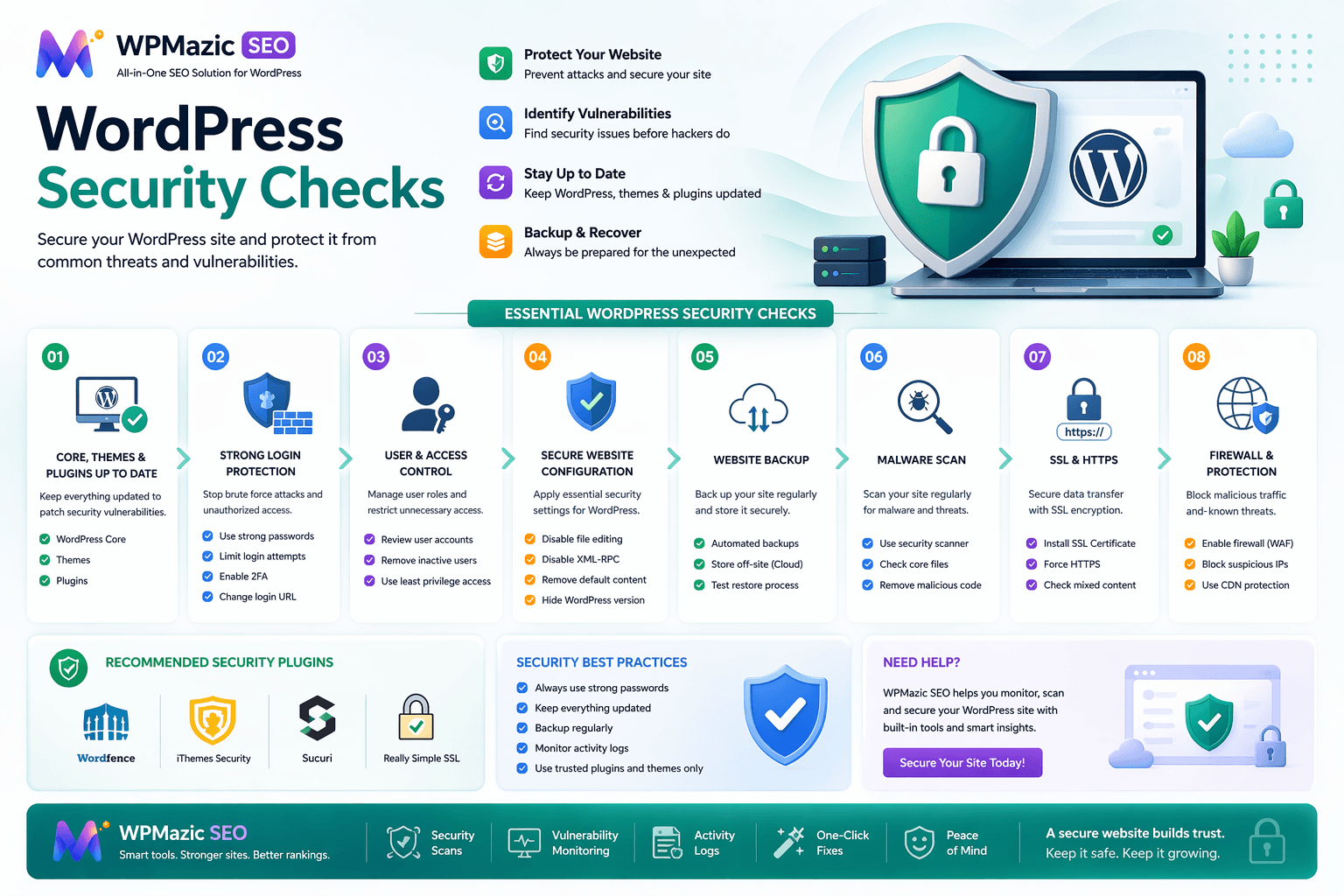
A proper security check isn’t just running a scan and calling it done. It’s a full audit across several areas:
- Core WordPress files — Are they up to date and unmodified?
- Plugins and themes — Any outdated, abandoned, or vulnerable ones?
- User accounts — Do the right people have the right access?
- Login protection — Is your login page exposed to brute-force attacks?
- Malware — Any hidden code, backdoors, or infected files?
- File permissions — Are sensitive files readable by the wrong parties?
- SSL/HTTPS — Is all traffic encrypted?
- Database — Is the default table prefix in use? Any unauthorized accounts?
- Backups — Can you recover if something breaks?
- Hosting security — Are server-level settings hardened?
Think of this like a health checkup. You’re not waiting until you’re sick. You’re making sure everything is working as it should.
3. Step-by-Step: How to Run a WordPress Security Check
Step 1: Check Your WordPress Version
Go to your WordPress dashboard → Dashboard → Updates.
If you’re not running the latest version of WordPress, update it now. Core updates often include security patches. Skipping them is one of the most common ways sites get compromised.
Pro Tip: Enable automatic minor updates for core WordPress. These are usually security-only patches and are safe to apply automatically.
Step 2: Audit Installed Plugins and Themes
Head to Plugins → Installed Plugins and review everything on the list. Ask yourself:
- Is this plugin still actively maintained? (Check last update date on WordPress.org)
- Is there a known vulnerability in the installed version?
- Do I actually use this plugin? If not, delete it — inactive plugins still pose a risk.
- Are any themes installed but not active? Delete those too.
Red flags to look for:
- Plugins not updated in 2+ years
- Plugins removed from the WordPress.org repository
- Themes from unknown or pirated sources (nulled themes are a major security risk)
Pro Tip: Use Wordfence or Patchstack to scan your plugins and themes for known CVEs (Common Vulnerabilities and Exposures).
Step 3: Review User Accounts and Roles
Go to Users → All Users and look through every account. Ask yourself:
- Is there an account you don’t recognize?
- Are there old admin accounts for contractors who no longer work with you?
- Is anyone assigned “Administrator” who only needs “Editor” access?
Delete unused accounts. Downgrade permissions where possible. Apply the principle of least privilege — give people only the access they actually need.
Also check: Is “admin” still in use as a username? If yes, create a new admin with a different username and delete the default one.
Step 4: Scan for Malware and Suspicious Files
Malware in WordPress can hide in plugin or theme files, the wp-content/uploads directory, modified core files, and even in the database as injected scripts.
Use a plugin like Wordfence Security (free version works well) or MalCare to run a full site scan. These tools compare your files against clean WordPress core files and flag anything suspicious.
If you find .php files in your uploads folder, that’s a serious red flag. Legitimate uploads are images, PDFs, and media — not PHP scripts.
Step 5: Check Login Page Security
Your default login URL is yoursite.com/wp-admin or yoursite.com/wp-login.php. Hackers know this. Bots hammer it constantly.
What to check and fix:
- Move the login URL — Use a plugin like WPS Hide Login to change it to a custom path.
- Enable two-factor authentication (2FA) — Plugins like WP 2FA make this easy.
- Limit login attempts — Install Limit Login Attempts Reloaded. After 3–5 failed attempts, temporarily block that IP.
- Disable XML-RPC — Unless you specifically need it, disable XML-RPC. It’s a common brute-force attack vector.
Pro Tip: If you’re using WPMazic SEO, check the site health section alongside a dedicated security plugin to monitor for unusual activity and technical anomalies in one place.
Step 6: Review File Permissions
Check this via your hosting file manager or FTP client. Correct file permissions:
| Location | Recommended Permission |
|---|---|
| WordPress folders | 755 |
| WordPress files | 644 |
| wp-config.php | 440 or 400 |
| .htaccess | 644 |
If wp-config.php is set to 777, it means anyone on the server can read or modify it. That file contains your database credentials — it needs to be the most protected file on your site.
Step 7: Test SSL and HTTPS Setup
Go to your site and check if it loads over https://. Use SSL Labs’ free SSL Test to check certificate validity, expiration, and protocol strength.
Also make sure all HTTP requests redirect to HTTPS. In WordPress, go to Settings → General and confirm both WordPress Address and Site Address start with https://.
Step 8: Inspect Your Database Security
By default, WordPress uses wp_ as the table prefix. Change it to something like xk91_ — this makes SQL injection attacks harder because the attacker no longer knows your table names automatically.
Go to phpMyAdmin → wp_users and look for any accounts you don’t recognize. If you find one with admin-level access, delete it immediately and change all passwords.
Step 9: Check Your Backup System
A backup isn’t just “nice to have” — it’s your recovery plan. Check that:
- Backups are running automatically (daily for active sites)
- Backups are stored off-site — not just on your hosting server
- You can actually restore from a backup (test it at least once)
Pro Tip: Having a backup only on the same server is barely better than having none. If the server gets compromised or crashes, you lose both.
Step 10: Review Hosting-Level Security
Your host is your first line of defense. Check with your host about:
- PHP version — Running PHP 8.1 or higher? Older versions don’t receive security updates.
- Firewall (WAF) — Is a Web Application Firewall in place?
- DDoS protection — Do they mitigate large-scale traffic attacks?
- Isolated accounts — On shared hosting, are accounts isolated so one hacked site can’t infect others?
4. Best Free and Paid Security Tools for WordPress
Free Tools:
- Wordfence Security — Full-featured scanner, login protection, and firewall. The free version covers most small sites.
- WPScan — Checks for known plugin/theme vulnerabilities. Has a web version and CLI.
- Sucuri SiteCheck — Free external scan for blacklisting, malware, and obvious issues.
- SSL Labs Test — Free SSL/TLS certificate analysis.
Paid Tools:
- MalCare — Deep malware scanning and one-click removal. Great for non-technical users.
- Sucuri Security (Pro) — Includes a cloud-based WAF plus malware removal service.
- Patchstack — Real-time virtual patches for plugin/theme vulnerabilities.
- WPMazic SEO — Primarily an SEO plugin, but its site health monitoring features surface technical issues early — a useful companion to your security workflow.
5. Pro Tips for Ongoing WordPress Security
- Schedule monthly checks — A 30-minute audit once a month catches most problems early.
- Keep a plugin inventory — Maintain a simple list of installed plugins and their purpose.
- Use a password manager — Strong, unique passwords for every account. No exceptions.
- Monitor uptime and performance — Sudden slowdowns can indicate a DDoS attack or resource-draining malware.
- Stay informed — Follow the WPScan vulnerability database or Patchstack blog.
- Use activity logging — Plugins like WP Activity Log track who logs in, what they change, and when.
- Disable file editing from the dashboard — Add
define('DISALLOW_FILE_EDIT', true);towp-config.php.
6. Common Mistakes That Put Your Site at Risk
Using “admin” as a username
This is the first thing brute-force bots try. Change it right now.
Installing plugins from unofficial sources
Nulled plugins and themes from random sites often come pre-loaded with backdoors. Only install from WordPress.org or reputable premium marketplaces.
Ignoring update notifications
That “5 updates available” banner isn’t just nagging. Each update may include critical security patches.
Not changing default settings
Default table prefix, default login URL, default database name — attackers know all of these. Changing them adds friction that stops automated attacks.
Trusting “security by obscurity”
Hiding your login page is helpful, but it’s not a substitute for proper security. Think of it as one layer, not the whole strategy.
Not testing your backups
A backup you’ve never tested is a backup you can’t rely on. Restore to a staging environment at least once.
Giving too many users admin access
Every admin account is a potential attack surface. Use editor or author roles wherever possible.
7. Conclusion
WordPress security isn’t a one-time task — it’s a responsibility that comes with running a site. The good news is that most attacks succeed because of preventable mistakes: outdated plugins, weak passwords, default settings, no backups.
Start with the 10-step checklist in this guide. Go through each section, fix what needs fixing, and set a recurring reminder to revisit it every month.
The sites that get hacked aren’t usually targeted specifically — they’re found because they were easy. Don’t be an easy target.
And if you want a streamlined way to keep an eye on your site’s overall health, tools like WPMazic SEO can surface technical and performance issues early, giving you one less thing to miss during your regular checks.
Your site is worth protecting. Start your security check today.