Article Guide
Use these jump points to move through the article faster.
Most WordPress owners think about SEO the moment they hit publish. They write a title, add a meta description, stuff in a focus keyword, and move on. That workflow made sense in 2015. It doesn’t in 2026.
Search engines have become genuinely smart. Google’s crawlers don’t just read your page — they analyze your site’s structure, understand your linking patterns, measure how fast your pages load, evaluate your schema output, check your indexing signals, and look at whether your internal architecture actually makes sense. If those technical layers are broken or missing, the quality of your content matters less than you’d hope.
This guide covers technical SEO for WordPress from the ground up. Whether you’re running a personal blog, a business site, a WooCommerce store, or managing multiple client websites as an agency — the fundamentals here apply. We’ll go through crawlability, indexation, schema markup, site architecture, Core Web Vitals, redirects, canonical tags, and how to use your SEO plugin to keep everything organized.
By the end, you’ll have a working technical SEO framework you can apply to any WordPress site — not just a list of tips to forget.
What Is Technical SEO and Why Does It Matter for WordPress?
Technical SEO refers to the non-content work that makes your website easier for search engines to crawl, understand, and index. While on-page SEO focuses on what’s on your pages — keywords, headings, content quality — technical SEO focuses on the infrastructure underneath.
Think of it this way: if on-page SEO is the product in your store’s window, technical SEO is the building itself. A well-stocked window in a building with a broken entrance, no lighting, and confusing signage still loses customers.
WordPress makes certain technical SEO tasks easy. Plugins, permalink settings, and a huge ecosystem of tools mean you have a lot of control without writing code. But that same flexibility can also create problems. Plugins conflict. Settings get misconfigured. Themes override canonical tags. Image libraries slow load times. Admin settings accidentally block crawlers.
Technical SEO in WordPress is therefore both easier and trickier than on other platforms. You have more control — but you also have more things that can go wrong.
Part 1: Crawlability — Making Sure Google Can Actually Find Your Pages
Before Google can rank your content, its bots need to reach it. Crawlability is exactly that — whether search engine bots can access your pages without running into blocks, errors, or structural dead ends.
Check Your robots.txt File
Every WordPress site has a robots.txt file at yourdomain.com/robots.txt. This file tells search engines which pages they’re allowed to crawl. A misconfigured robots.txt can accidentally block your entire site from being indexed — and it happens more often than most site owners realize.
The most common mistake happens during development. A developer switches the site to “discourage search engines” in WordPress settings (Settings → Reading → Search Engine Visibility), forgets to turn it off after launch, and the site goes live with a robots.txt that blocks all crawlers.
Check your robots.txt right now. If you see under , that’s a problem. Your entire site is blocked.
For most sites, a proper robots.txt should allow all bots by default and only block non-indexable areas like wp-admin, certain plugin directories, or staging paths:
User-agent: *
Disallow: /wp-admin/
Allow: /wp-admin/admin-ajax.php
Sitemap: https://yourdomain.com/sitemap.xml
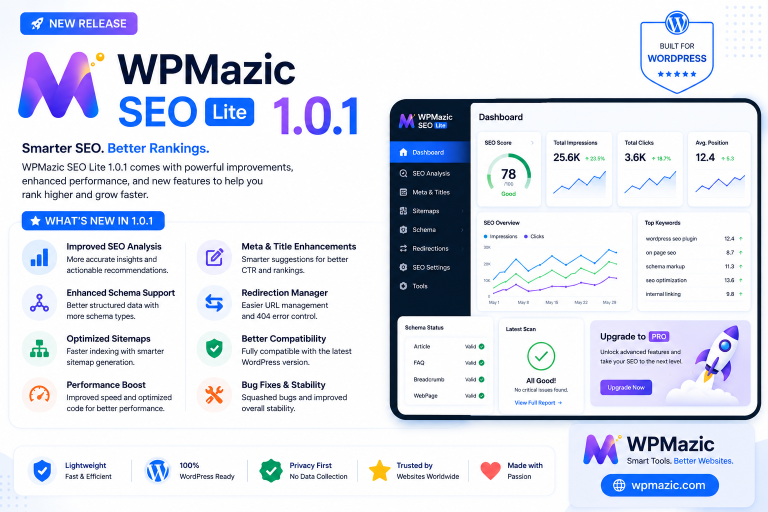
A good SEO plugin — like WPMazic SEO — gives you a visual editor for your robots.txt right inside WordPress, so you don’t have to manually access or upload the file via FTP.
XML Sitemaps: Your Site’s Table of Contents for Google
An XML sitemap is a structured list of URLs on your site that you submit to Google Search Console. Think of it as handing Google a complete table of contents so bots don’t have to discover every page by following links.
WordPress doesn’t generate a proper XML sitemap by default. That’s where your SEO plugin comes in. Once active, it should generate a sitemap automatically at something like yourdomain.com/sitemap.xml or yourdomain.com/sitemap_index.xml.
What a good XML sitemap should include:
- All published posts and pages
- Category and tag archive pages (if they’re indexable and have content)
- Important WooCommerce product pages
- Custom post types you want indexed
What it should NOT include:
- Admin pages
- Attachment pages
- Pages marked noindex
- Thin or duplicate archive pages
- Author pages on single-author blogs
After setting up your sitemap, submit it in Google Search Console under Sitemaps. Then monitor it over time — Google will tell you if it can’t fetch URLs or if pages are being excluded.
Crawl Budget: Why Large Sites Need to Think About This
Crawl budget refers to how many pages Google will crawl on your site within a given time period. For small blogs with 50 pages, crawl budget is rarely an issue. For large WooCommerce stores with thousands of product pages, or news sites publishing hundreds of posts monthly, it becomes significant.
If Google wastes crawl budget on low-value pages — thin tag archives, filtered product pages, internal search results, admin pages — it has fewer resources to crawl your important content. This can mean new pages take longer to get indexed, and lower-quality pages compete for crawl attention alongside high-value content.
To manage crawl budget in WordPress:
- Noindex thin tag and category archives that add no unique value
- Use canonical tags on paginated content
- Block faceted navigation URLs (like filter-generated URLs in WooCommerce) in robots.txt or with noindex
- Remove broken links and redirect chains that waste crawler resources
- Consolidate duplicate content with proper canonicals
Your SEO plugin should give you per-page control over indexability so you can set individual pages as noindex without touching code.
Part 2: Indexation — Controlling What Google Puts in Its Database
Crawling and indexing are different things. Google can crawl a page without indexing it. Indexation is the step where Google decides to store your page in its database and consider it for ranking.
The noindex Tag: Your Most Important Indexation Control
The noindex meta tag tells Google: “Visit this page if you want, but don’t add it to your search index.” It lives in the section of your HTML:
<span class="token token"><</span><span class="token token">meta</span> <span class="token token">name</span><span class="token token attr-equals">=</span><span class="token token">"</span><span class="token token">robots</span><span class="token token">"</span> <span class="token token">content</span><span class="token token attr-equals">=</span><span class="token token">"</span><span class="token token">noindex, follow</span><span class="token token">"</span><span class="token token">></span>Most WordPress SEO plugins let you set this on a per-page or per-post-type basis. Knowing when to use noindex is critical.
Use noindex on:
- Thank-you pages and confirmation pages
- Internal search results pages
- Duplicate content pages
- Thin archive pages (some tag archives, date archives)
- Admin-related content that’s accidentally public
- Staging or test pages accidentally published
Do NOT noindex:
- Your homepage
- Core product or service pages
- Important blog posts
- Category pages with sufficient unique content
One common mistake: bloggers noindex all their tag archive pages by default because they read somewhere that “tag archives are thin content.” That’s not always true. If a tag archive aggregates meaningful topically related posts and has actual content at the top, it can rank. Be selective rather than blanket-blocking.
Canonical Tags: Solving Duplicate Content Problems
Duplicate content is a quiet killer in WordPress. It happens when multiple URLs show very similar or identical content. Common sources of duplication include:
- HTTP vs HTTPS versions of pages
- www vs non-www versions
- Paginated archives (page 1, page 2, etc.)
- Category prefixes in URLs
- WooCommerce product pages with multiple attribute URLs (color=blue vs color=red for the same product)
- Print-friendly page versions
The canonical tag tells Google which URL is the “preferred” version of a piece of content. It doesn’t block crawling but signals which version should receive ranking credit:
<span class="token token"><</span><span class="token token">link</span> <span class="token token">rel</span><span class="token token attr-equals">=</span><span class="token token">"</span><span class="token token">canonical</span><span class="token token">"</span> <span class="token token">href</span><span class="token token attr-equals">=</span><span class="token token">"</span><span class="token token">https://yoursite.com/preferred-url/</span><span class="token token">"</span><span class="token token">></span>WordPress SEO plugins handle canonical tags automatically for most situations, but you’ll want to manually review:
- Products with variants (WooCommerce)
- Paginated content
- Filtered archive pages
- Posts that exist in multiple categories
Google Search Console: Your Indexation Dashboard
Google Search Console (GSC) is free and essential. After connecting your site, check the Coverage report regularly. It shows you which pages are indexed, which are excluded, and why. Common issues you’ll find:
- “Submitted URL marked noindex” — you noindexed a page you actually want ranked
- “Crawled — currently not indexed” — Google crawled but decided not to index the page (often a quality signal)
- “Duplicate without user-selected canonical” — Google found duplicate content you haven’t explicitly canonicalized
- “Not found (404)” — links pointing to pages that no longer exist
Each of these requires a specific fix. The Coverage report turns these abstract SEO concepts into a concrete action list.
Part 3: Site Architecture — Building a Structure Google Loves
Site architecture is how your pages relate to each other through links, hierarchy, and URL structure. A well-structured site makes it easy for both users and search engines to navigate. A poorly structured site creates confusion, dilutes link equity, and makes crawling inefficient.
URL Structure and Permalinks
WordPress gives you control over permalink structure under Settings → Permalinks. For SEO, the recommended setting is either:
— clean, keyword-focused— good if categories are meaningful and stable
Avoid the default WordPress permalink structure that uses style URLs. These are not human-readable, carry no keyword context, and don’t communicate page hierarchy.
Once you choose a permalink structure, stick with it. Changing it later requires 301 redirects across your entire site — a significant operation that can temporarily affect rankings if done incorrectly.
For best results, keep URLs:
- Short and descriptive (under 60 characters where possible)
- Lowercase with hyphens, not underscores
- Free of stop words where they don’t add clarity (“a,” “the,” “and”)
- Reflective of the primary keyword target for that page
Internal Linking: The Underrated Architecture Tool
Internal links are hyperlinks that point from one page on your site to another page on your same site. They do several important things for SEO:
- Distribute link equity — pages that earn backlinks pass some of that authority through internal links to other pages
- Help bots discover content — Google follows internal links to find pages it might not otherwise crawl
- Signal topic relationships — linking between related posts helps Google understand how your content clusters connect
- Reduce bounce rate — relevant internal links keep readers on your site longer
A common WordPress mistake is treating internal links as an afterthought. You publish a post, add one or two links, and move on. But strategic internal linking — especially linking older high-authority posts to newer content — can significantly boost how quickly new pages get indexed and how well they rank.
Practical internal linking rules:
- Each new post should link to 3–5 relevant existing posts
- Each important existing post should receive links from at least 3–4 other posts
- Use descriptive anchor text, not generic phrases like “click here”
- Build topic clusters — a pillar post linking to supporting articles, and those articles linking back to the pillar
Handling Orphan Pages
An orphan page is a page on your site that receives no internal links. If Google has to discover it only through the sitemap — with no links pointing to it — it signals that the page isn’t important enough to mention elsewhere. This affects how Google perceives and ranks it.
Audit your site regularly for orphan pages. Any important content with zero internal links should have links added from relevant existing posts. For less important content — old pages, outdated posts, archive pages — you might consider consolidating, redirecting, or removing them entirely.
Part 4: Schema Markup — Speaking Google’s Structured Data Language
Schema markup is code (usually in JSON-LD format) that you add to your pages to help Google understand what type of content is on each page and how the information within it is structured. It doesn’t directly cause rankings to improve, but it enables rich results in SERPs — which significantly increases click-through rates.
Types of Schema Relevant to WordPress Sites
Depending on your site type, different schema types matter:
For blogs and articles:
- Article or BlogPosting schema — tells Google this is an article, with author, date, headline, and image information
For business websites:
- LocalBusiness schema — address, hours, phone number, geo coordinates
- Organization schema — company name, logo, contact info, social profiles
For WooCommerce stores:
- Product schema — name, price, currency, availability, reviews
- Offer schema — pricing and availability details
- AggregateRating schema — review scores
For FAQ content:
- FAQPage schema — question-and-answer pairs that can appear directly in SERPs as expandable dropdowns
For how-to guides:
- HowTo schema — step-by-step instructions that can appear in search as a rich card
For local businesses:
- BreadcrumbList schema — shows your page hierarchy in SERPs
How to Implement Schema in WordPress
The cleanest way to add schema to WordPress is through an SEO plugin that handles JSON-LD generation automatically. WPMazic SEO includes a schema builder that lets you assign schema types to posts and pages through the plugin’s interface — no coding required.
For each page or post, you should be able to:
- Select the appropriate schema type (Article, Product, FAQ, etc.)
- Fill in the required fields (title, description, author, etc.)
- Preview the generated JSON-LD output before publishing
After implementing schema, validate it using Google’s Rich Results Test (search.google.com/test/rich-results). This tool shows you exactly what structured data Google sees and flags any errors or missing recommended fields.
FAQ Schema: The Quick Win for More SERP Real Estate
FAQ schema is one of the highest-impact schema types for most WordPress blog posts and landing pages. When implemented correctly, your page can show expanded question-and-answer dropdowns directly in the search result — taking up significantly more space and increasing visibility.
Adding FAQ schema to a post is straightforward with a capable SEO plugin:
- Add a FAQ section to your content with clear question-and-answer formatting
- Mark the section as FAQ schema in your SEO plugin
- Google picks it up within a crawl cycle and may start showing it in SERPs
The key is making sure the questions in your FAQ schema match real search queries your audience uses. Generic questions (“What is X?”) are less effective than specific ones (“How do I set up X in WordPress?”).
Part 5: Core Web Vitals — Performance as a Technical SEO Factor
Google made Core Web Vitals an official ranking factor, and in 2026, performance expectations have only gotten tighter. Core Web Vitals measure three specific aspects of page experience:
Largest Contentful Paint (LCP)
LCP measures how long it takes for the largest visible element on the page to fully load. This is typically a hero image, a large text block, or a featured image. Google wants LCP under 2.5 seconds.
In WordPress, LCP issues commonly come from:
- Large unoptimized images (not compressed, wrong format)
- Slow hosting with poor Time to First Byte (TTFB)
- Render-blocking CSS or JavaScript
- No lazy loading implemented properly
- Missing CDN for global audiences
To improve LCP:
- Serve images in WebP or AVIF format
- Use a caching plugin (WP Rocket, W3 Total Cache, or LiteSpeed Cache)
- Preload your LCP image using the
attribute - Enable a CDN (Cloudflare, BunnyCDN, etc.)
- Choose a hosting provider with fast TTFB (under 200ms)
Cumulative Layout Shift (CLS)
CLS measures visual instability — how much page elements jump around as the page loads. A score under 0.1 is considered good.
Common CLS culprits in WordPress:
- Images without defined width and height attributes
- Ads that load after page content and push content down
- Web fonts that cause text reflow while loading (FOUT/FOIT)
- Embeds (YouTube, social media) without explicit dimensions
- Dynamic banners, cookie consent bars, and notification pop-ups that inject into the layout
Fix CLS by always specifying image dimensions in HTML, using font-display: swap cautiously, and reserving space for any element that loads asynchronously.
Interaction to Next Paint (INP)
INP replaced FID (First Input Delay) as the interaction metric in Core Web Vitals. It measures the delay between a user’s interaction — clicking, tapping, typing — and the browser’s next visual response. Good INP is under 200 milliseconds.
INP issues in WordPress often come from:
- Heavy JavaScript executing on the main thread
- Bloated page builders running complex scripts
- Third-party scripts (chat widgets, analytics, tracking pixels) blocking interaction processing
- Poorly coded plugins adding unnecessary event listeners
Fix INP by auditing your JavaScript load, deferring non-critical scripts, and minimizing third-party code execution on page load.
Measuring Core Web Vitals
You can measure Core Web Vitals through:
- Google Search Console → Core Web Vitals report (real-world field data)
- PageSpeed Insights (pagespeed.web.dev) — shows both lab and field data
- Chrome DevTools → Lighthouse tab
- WebPageTest (webpagetest.org) — detailed waterfall and performance breakdowns
The Search Console report is especially important because it shows real user data from Chrome users, not just lab simulations. Fix the URLs flagged as “Poor” first, then work through “Needs Improvement.”
Part 6: Redirects and 404 Errors — Keeping Your Site’s Link Equity Intact
Redirects and 404 errors are an often-neglected part of technical SEO that can quietly damage your site’s performance over time.
301 vs 302 Redirects
A 301 redirect is a permanent redirect. It tells Google and browsers that the old URL has moved permanently to the new location. Most of the link equity (ranking power) from the old URL transfers to the new one.
A 302 redirect is temporary. It signals that the move is not permanent. Google holds ranking credit at the original URL rather than transferring it. Using a 302 when you mean a 301 is a common mistake that prevents link equity from flowing properly.
In WordPress, your SEO plugin should have a redirect manager that lets you:
- Create 301 and 302 redirects from the admin dashboard
- Import redirect lists in bulk (from a CSV or migration)
- Monitor which redirects are being triggered and how often
- Catch 404 errors and create redirects directly from the 404 log
WPMazic SEO includes redirect management within its core plugin, so you don’t need a separate redirect plugin competing with your SEO plugin for the same functionality.
Redirect Chains: The Silent Performance Killer
A redirect chain occurs when URL A redirects to URL B, which redirects to URL C. Every hop in the chain adds latency and loses a small amount of link equity. In some cases, Google stops following chains altogether if they get too long.
To find redirect chains, use a tool like Screaming Frog SEO Spider (free up to 500 URLs) or Sitebulb. It will crawl your site and flag any URLs that trigger multi-hop redirects. Clean these by updating the initial redirect to point directly to the final destination.
Handling 404 Errors
A 404 error means the requested page doesn’t exist. A small number of 404s is normal — the web changes. But a large number of 404s — especially linked from internal pages or from external backlinks — wastes crawl budget and loses link equity.
Monitor 404s through:
- Google Search Console → Pages → Not Found (404)
- Your SEO plugin’s 404 log (if it has one)
- Server access logs
When you find 404s:
- If important: create a 301 redirect to the most relevant live page
- If irrelevant: leave them as-is (a true 404 is cleaner than a redirect to an unrelated page)
- If you’re getting lots of spam 404s: investigate whether bots are probing your site
Part 7: HTTPS and Security Signals
HTTPS has been a confirmed Google ranking signal since 2014. In 2026, it’s table stakes — any site still on HTTP is at a significant disadvantage. Beyond the ranking signal, browsers mark HTTP pages as “Not Secure,” which damages user trust and increases bounce rate.
Moving WordPress to HTTPS
If your site isn’t already on HTTPS, the process involves:
- Getting an SSL certificate (Let’s Encrypt is free through most hosting providers)
- Installing the certificate through your hosting control panel or plugin
- Updating your WordPress URL settings to use
- Setting up 301 redirects from all HTTP URLs to HTTPS equivalents
- Updating any hardcoded HTTP links in your content and theme
- Fixing mixed content warnings (resources loading over HTTP on HTTPS pages)
Most good hosting providers handle SSL setup almost automatically now. The tricky part is fixing mixed content — images, scripts, or CSS files being loaded via HTTP on an HTTPS page. Use a plugin like Really Simple SSL or handle it through your .htaccess file.
HSTS Headers
Once HTTPS is running, you can add HTTP Strict Transport Security (HSTS) headers through your .htaccess file or server configuration. HSTS tells browsers to always use HTTPS for your domain, even if someone types . This prevents downgrade attacks and ensures users always get the secure version.
Part 8: Setting Up Your WordPress SEO Plugin for Technical SEO
All of the technical SEO elements covered in this guide — robots.txt, XML sitemaps, noindex controls, canonical tags, schema, redirects, and more — can and should be managed through a single, capable SEO plugin.
The alternative is using separate plugins for each function: one for sitemaps, one for redirects, one for schema, one for 404 tracking. That approach creates plugin conflicts, slower admin loads, and maintenance complexity.
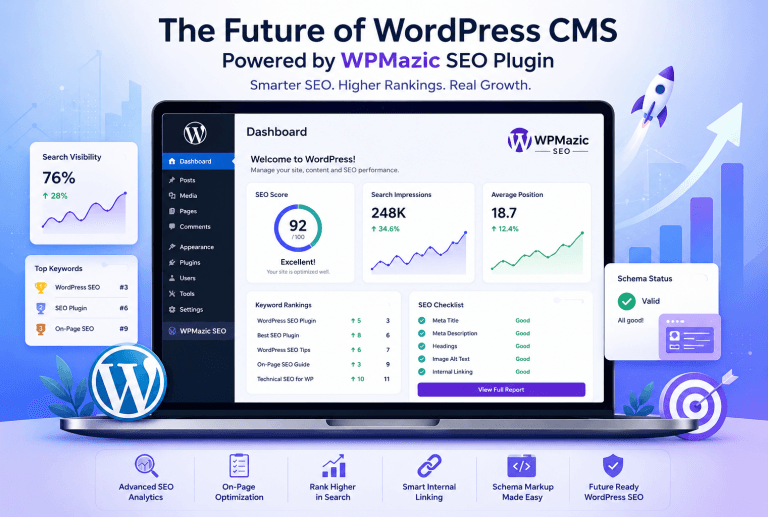
A unified SEO plugin like WPMazic SEO is designed to centralize all of this:
In the WPMazic SEO dashboard, you can:
- Configure your robots.txt rules from a visual editor
- Generate and customize your XML sitemap with post-type level controls
- Set indexation rules globally and per-post-type
- Enable canonical URLs automatically with manual override options
- Add schema markup types to posts, pages, and custom post types through a UI
- Manage redirects with a built-in redirect manager
- Monitor 404 errors from the plugin dashboard
- Connect to Google Search Console for indexing insights
- Control meta tags globally and override per-page
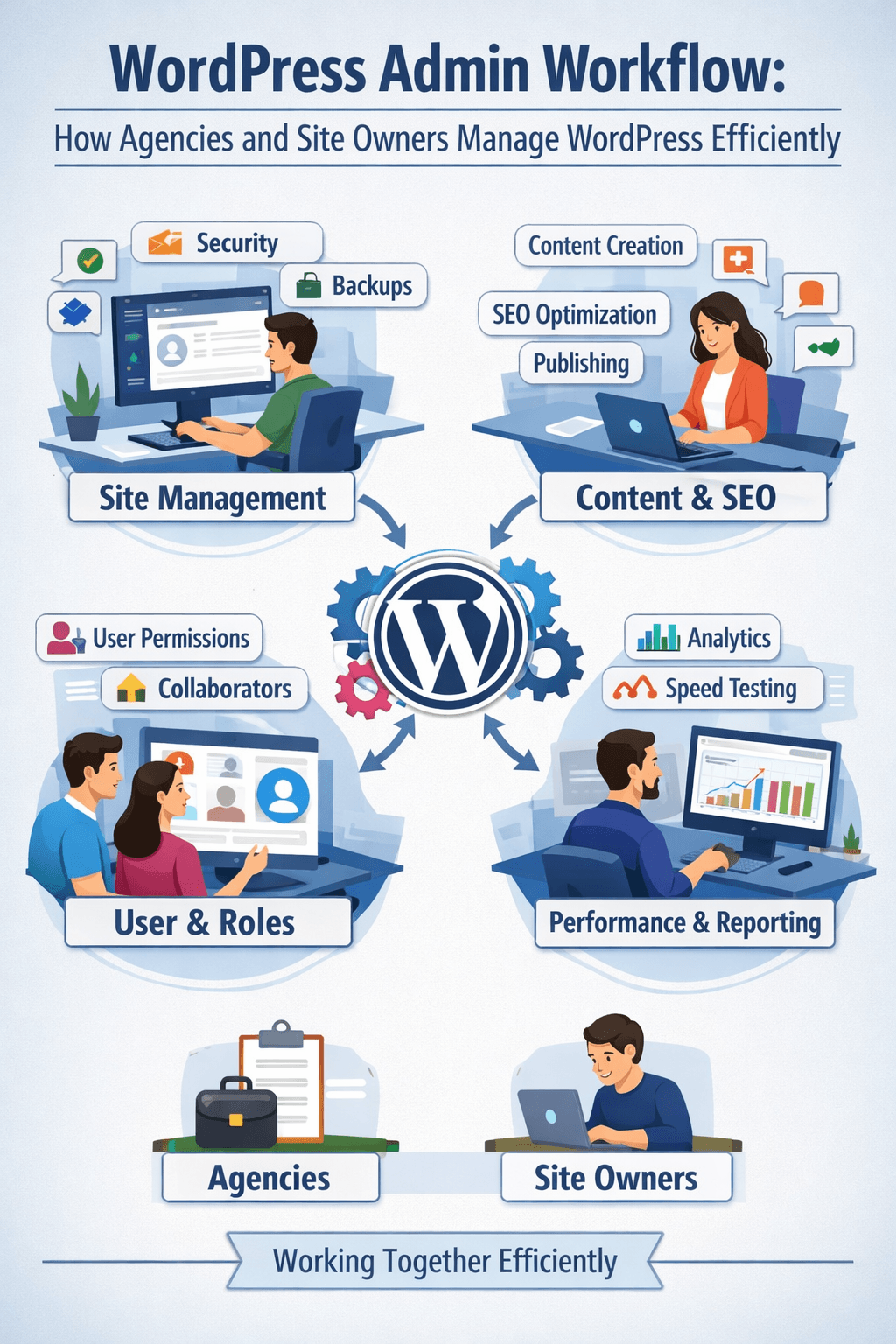
For agencies managing multiple WordPress sites, having this all in one plugin with consistent configuration reduces onboarding time, reduces errors, and makes it much easier to audit any site at a glance.
Technical SEO Audit Checklist for WordPress
Here’s a condensed checklist to run through on any WordPress site:
Crawlability
- robots.txt is correct and not blocking important content
- XML sitemap is generated and submitted to Google Search Console
- No important pages are accidentally blocked from crawling
- Crawl errors monitored in Google Search Console
Indexation
- noindex set on thin, duplicate, or non-SEO pages
- Canonical tags implemented correctly on all important pages
- No accidental noindex on pages you want to rank
- Coverage report reviewed in Google Search Console
Site Architecture
- Clean permalink structure using descriptive slugs
- Internal linking strategy in place (minimum 3–5 internal links per post)
- No orphan pages among important content
- Breadcrumbs enabled for large sites
Schema
- Article or BlogPosting schema on all blog posts
- Organization or LocalBusiness schema on homepage
- FAQ schema on applicable posts and pages
- Product schema on WooCommerce product pages
- All schema validated with Google’s Rich Results Test
Core Web Vitals
- LCP under 2.5 seconds (check PageSpeed Insights)
- CLS under 0.1
- INP under 200ms
- Images optimized and served in modern formats (WebP/AVIF)
- Caching plugin active
Redirects and Errors
- All 301 redirects going directly to final destination (no chains)
- 404 errors monitored and actioned
- No important backlink targets returning 404
Security
- Site running on HTTPS
- No mixed content warnings
- SSL certificate valid and auto-renewing
Final Thoughts
Technical SEO isn’t a one-time setup task. It’s an ongoing maintenance layer that keeps your WordPress site in good standing with search engines as your content grows and your site evolves. Pages get deleted. URLs change. Plugins add code. Themes get updated. Each of these events can introduce technical issues that quietly drag performance down if you’re not monitoring.
The practical solution is to build a system: use a capable SEO plugin that centralizes your technical controls, set up Google Search Console alerts, run a quarterly technical audit, and treat your site’s infrastructure with the same attention you give your content.
WordPress gives you the flexibility to control all of this. The question is whether you’ve taken the time to set it up properly.
If you want to manage your WordPress site’s technical SEO from one place — sitemaps, schema, redirects, canonicals, indexation controls, and more — WPMazic SEO is built for exactly that kind of centralized workflow.