Article Guide
Use these jump points to move through the article faster.
A WordPress XML sitemap is one of those foundational technical SEO elements that’s easy to take for granted once it’s set up — and devastatingly easy to misconfigure in ways that quietly limit how much of your content Google discovers and indexes. Most WordPress site owners know they need a sitemap. Far fewer understand what a well-configured sitemap actually looks like, what should and shouldn’t be in it, or how to use the different sitemap types (image, video, news) to expand their search visibility beyond standard web results.
This guide covers WordPress XML sitemaps from the ground up: what they are, why they matter, how WPMazic SEO generates and manages them, the different sitemap types and when each applies, how to submit your sitemap to Google and monitor its performance, and how to diagnose and fix every common sitemap problem that shows up in Google Search Console.
Part 1: What an XML Sitemap Does — and What It Doesn’t Do
Understanding what a sitemap actually accomplishes prevents the common mistakes of over-relying on it or misconfiguring it.
What a Sitemap Does
It helps crawlers discover your content. Google’s bots discover pages by following links from page to page. On a well-linked site with good internal linking, this works reasonably well for established content. For new content published hours ago, for deep pages with few internal links, or for large sites where crawl budget is a constraint — a sitemap gives crawlers a complete, structured list of URLs to work from rather than depending entirely on link discovery.
It signals recency. XML sitemaps include a <lastmod> field showing when each URL was last modified. When you update a post — refresh the statistics, add a new section, improve the content — the lastmod date changes, signaling to Google that the URL has new content worth recrawling. WPMazic SEO automatically updates lastmod dates when posts are modified.
It organizes content by type. A sitemap index with child sitemaps organized by post type (posts, pages, products, images) helps Google understand the structure of your site’s content and lets you monitor indexing by category in Google Search Console.
What a Sitemap Doesn’t Do
It doesn’t guarantee indexing. Submitting a URL in your sitemap doesn’t force Google to index it. Google still evaluates every URL for quality, relevance, and uniqueness. A sitemap submission tells Google a URL exists — whether that URL gets indexed depends entirely on the content quality at that URL.
It doesn’t improve rankings directly. Being in the sitemap doesn’t boost a page’s ranking position. Rankings come from content quality, relevance, backlinks, and user signals — not from sitemap presence. The sitemap’s SEO value is ensuring content gets discovered and considered for ranking — it removes the barrier of discovery, not the barrier of ranking.
It’s not a substitute for good internal linking. A site with strong internal linking helps Google discover and understand content relationships regardless of sitemap quality. The sitemap is a supplement to internal linking — not a replacement. If your internal link structure is poor, a sitemap helps discovery but doesn’t fix the structural signal problems.
Part 2: The WordPress Sitemap Structure — How WPMazic SEO Organizes It
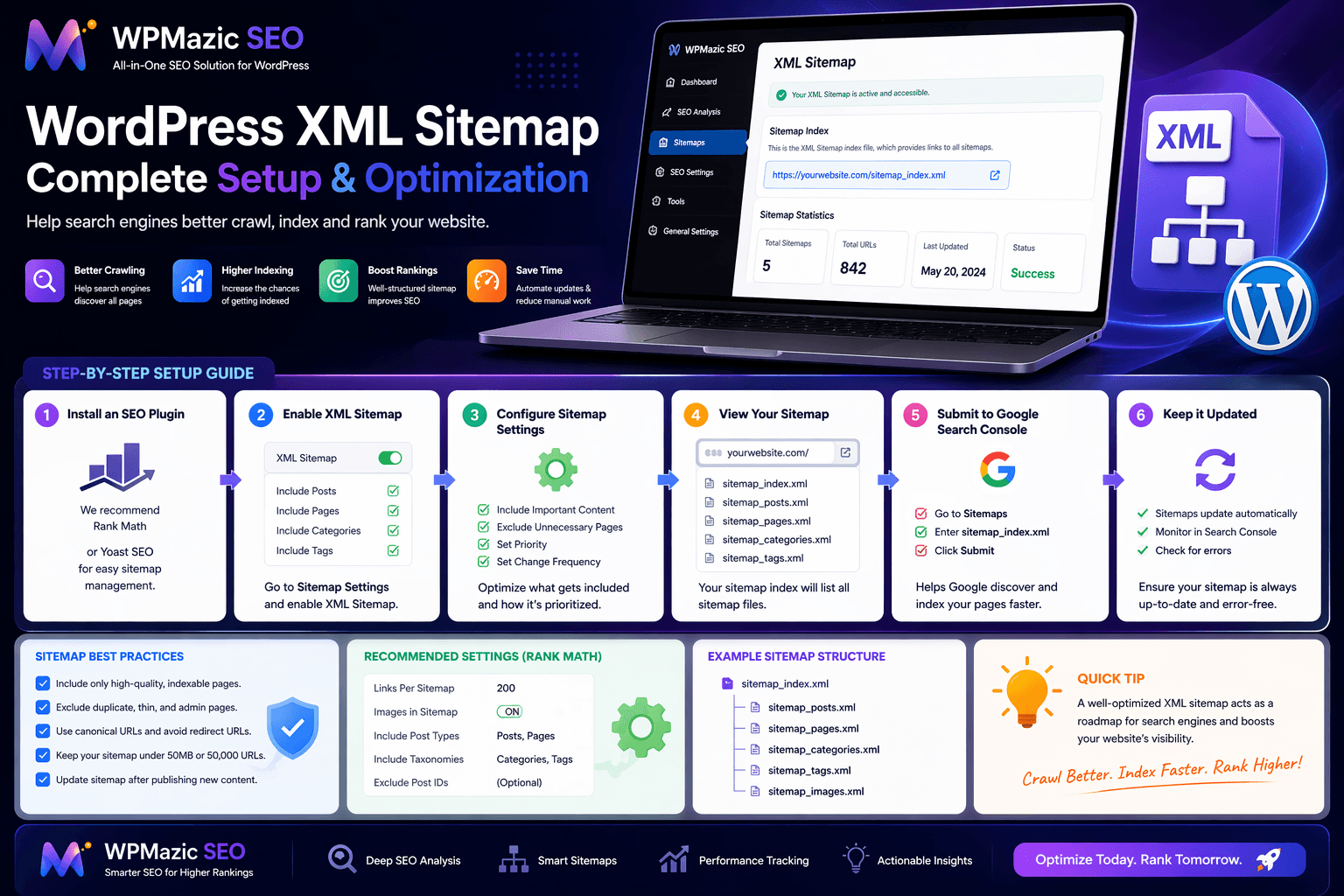
WordPress sites typically use a sitemap index structure — a parent file linking to multiple child sitemaps — rather than a single flat sitemap file. This approach keeps each individual file within Google’s 50,000 URL per file limit, organizes content logically, and makes it easy to monitor indexing by content type.
[Diagram: WordPress sitemap index structure — sitemap_index.xml links to child sitemaps organized by content type]
The Sitemap Index File (sitemap_index.xml)
The sitemap index is the entry point — the file you submit to Google Search Console. It doesn’t contain page URLs directly. Instead, it lists the locations of child sitemap files, each covering a specific content type. A typical WPMazic SEO sitemap index looks like this:
<?xml version="1.0" encoding="UTF-8"?>
<sitemapindex xmlns="http://www.sitemaps.org/schemas/sitemap/0.9">
  <sitemap>
    <loc>https://wpmazic.com/post-sitemap.xml</loc>
    <lastmod>2026-04-19T00:00:00+00:00</lastmod>
  </sitemap>
  <sitemap>
    <loc>https://wpmazic.com/page-sitemap.xml</loc>
    <lastmod>2026-04-18T00:00:00+00:00</lastmod>
  </sitemap>
  <sitemap>
    <loc>https://wpmazic.com/image-sitemap.xml</loc>
    <lastmod>2026-04-19T00:00:00+00:00</lastmod>
  </sitemap>
</sitemapindex>
Child Sitemap Files
Each child sitemap contains the actual page URLs for a specific content type. A post sitemap entry looks like this:
<url>
  <loc>https://wpmazic.com/wordpress-xml-sitemap-guide/</loc>
  <lastmod>2026-04-19</lastmod>
  <changefreq>monthly</changefreq>
  <priority>0.8</priority>
</url>
Note on changefreq and priority: Google has explicitly stated it largely ignores the <changefreq> and <priority> fields — they’re artifacts from an older era of sitemap specification. Don’t obsess over optimizing these values. The fields that actually matter are <loc> (the URL) and <lastmod> (the modification date).
Part 3: Setting Up Your WordPress XML Sitemap in WPMazic SEO
WPMazic SEO generates your WordPress XML sitemap automatically once configured. The default settings work well for most sites, but reviewing and customizing them ensures your sitemap is accurate and strategically optimized.
[WPMazic SEO Sitemap Settings panel — toggle each sitemap type and configure which post types to include]
Step 1 — Enable XML Sitemap Generation
- In your WordPress admin, go to WPMazic SEO → Sitemap Settings
- Enable XML Sitemap — this activates automatic sitemap generation
- Your sitemap becomes immediately accessible at
yourdomain.com/sitemap_index.xml - Verify it exists by opening that URL in your browser — you should see an XML file with your child sitemap URLs listed
[WordPress XML sitemap open in browser — the sitemap_index.xml structure showing child sitemaps by content type]
Step 2 — Configure Post Type Inclusion
WPMazic SEO lets you control exactly which post types and taxonomies appear in your sitemap. This is where strategic sitemap management begins.
[WPMazic SEO sitemap post type controls — include or exclude each content type from your sitemap individually]
Recommended inclusions for most WordPress sites:
- Posts (all published blog posts)
- Pages (homepage, about, contact, service pages)
- Products (WooCommerce product pages)
- Product categories (if they have unique content)
Recommended exclusions for most WordPress sites:
- Tag archives (thin content — should also be noindexed)
- Date archives (no SEO value)
- Author archives (on single-author sites)
- Attachment pages (WordPress media attachment URLs)
- WooCommerce cart, checkout, account pages
- Any custom post types that produce thin or private content
WPMazic SEO automatically excludes any post or page with a noindex setting from the sitemap — there’s no point listing URLs you’ve told Google not to index. This keeps your sitemap clean and free of contradictory signals.
Step 3 — Set Your Sitemap URL in robots.txt
Your robots.txt file should reference your sitemap URL so crawlers that read robots.txt can discover your sitemap immediately, even without a Search Console submission. WPMazic SEO adds this automatically to your robots.txt:
Sitemap: https://yourdomain.com/sitemap_index.xmlVerify your robots.txt includes this line by visiting yourdomain.com/robots.txt in your browser. WPMazic SEO’s built-in robots.txt editor (WPMazic SEO → Robots.txt) lets you view and edit this file from inside WordPress admin — no FTP required.
Part 4: Submitting Your WordPress Sitemap to Google Search Console
After generating your sitemap, submit it to Google Search Console for the fastest discovery and monitoring capabilities.
[Google Search Console Sitemaps section — type sitemap_index.xml in the input field and click Submit]
Sitemap Submission Steps
- Open Google Search Console → select your property
- In the left sidebar, click Sitemaps (under Indexing)
- In the “Add a new sitemap” field, enter:
sitemap_index.xml - Click Submit
- GSC processes the sitemap — usually within a few minutes — and updates the status
[GSC Sitemaps showing your sitemap with Success status and the Discovered vs Indexed URL counts]
Reading the GSC Sitemap Report
After submission, GSC shows two important numbers:
Discovered: How many URLs Google found in your sitemap. This should match your total published content count roughly (minus noindexed pages).
Indexed: How many of those URLs Google has actually added to its search index. It’s normal and expected for this to be lower than Discovered — Google evaluates each URL and doesn’t index pages it considers thin, duplicate, or low quality.
When to be concerned about Discovered vs Indexed gaps:
- Gap of 10–20%: Normal. Google doesn’t index every page — some evaluation happens before indexing.
- Gap of 30–50%: Investigate through the Pages/Coverage report. Check for patterns — are specific post types being excluded? Are there duplicate content or thin content issues?
- Gap of 60%+: A significant quality signal problem. Many of your submitted URLs are being evaluated as not worth indexing. Audit your content quality systematically.
Part 5: The Four Sitemap Types in WPMazic SEO — When Each Applies
Beyond the standard XML sitemap, WPMazic SEO supports specialized sitemap types for specific content. Each serves a different search visibility purpose.
1. Image Sitemap — For Google Image Search Visibility
An image sitemap helps Google discover and index the images on your WordPress site — particularly images that may be loaded via JavaScript or in ways that make standard HTML parsing less reliable. For sites where images are a key content element (photography, product photography, recipe blogs, design portfolios), an image sitemap can meaningfully increase Google Image Search traffic.
The image sitemap includes for each image: the page URL where the image appears (<image:loc>), the image title, caption, and geographic location where relevant. This metadata helps Google match your images to relevant image search queries more accurately than alt text and file names alone.
Who needs an image sitemap most:
- WooCommerce stores with many product photos
- Photography and portfolio sites
- Recipe blogs where food imagery drives discovery
- Interior design, architecture, or fashion sites
- Any site where significant traffic comes from Google Image Search
Enable in WPMazic SEO: Go to Sitemap Settings → Image Sitemap and toggle it on. WPMazic SEO (Lite and Pro) includes image sitemap generation. WPMazic SEO Pro provides additional controls for which post types contribute images and how image metadata is formatted.
2. Video Sitemap — For Google Video Search Visibility
A video sitemap helps Google discover, understand, and index video content embedded in your WordPress posts — enabling Video Rich Results in search and improving visibility in Google Video Search.
Video sitemaps are most valuable when you have substantial video content embedded in posts — tutorial video libraries, product demo collections, educational video series. If your WordPress site primarily uses text with occasional embedded YouTube videos for supplementary context, a video sitemap adds minimal additional value.
The video sitemap includes: the page URL hosting the video, video title, description, thumbnail URL, duration, and whether the content requires subscription access. Google uses this metadata to categorize and surface your videos in relevant searches.
Video sitemap is a WPMazic SEO Pro feature. Enable it in Sitemap Settings → Video Sitemap in WPMazic SEO Pro’s settings. Configure which post types and video embed sources to include.
3. News Sitemap — For Google News and Discover Visibility
A news sitemap serves a fundamentally different purpose than standard XML sitemaps. It’s specifically designed for publishers whose content qualifies for Google News and Google Discover — online news publications, industry news sites, and high-frequency content publishers.
Key differences from a standard sitemap:
- Recency requirement: News sitemaps should only include articles published within the last 48 hours — Google’s news crawlers focus on fresh content
- Required fields: News sitemaps require the
<news:publication_date>and<news:title>fields in a specific format that Google News crawlers recognize - Separate from main sitemap: The news sitemap is submitted separately in Google Search Console’s News-specific submission area
- Publisher approval: Google News appearance also depends on your site being recognized as a legitimate news publisher — a news sitemap alone doesn’t guarantee News placement
Do you need a news sitemap? Only if your WordPress site publishes timely news content and you’re actively pursuing Google News / Discover visibility. For standard blogs and business sites that publish evergreen or infrequently updated content, a news sitemap adds no benefit and can create confusion if it includes non-news content.
News sitemap is a WPMazic SEO Pro feature. Enable and configure in Sitemap Settings → News Sitemap — specify which categories or post types represent news content, publication name, and language.
4. HTML Sitemap — For Visitors, Not Search Engines
An HTML sitemap is a human-readable page on your site listing all your content in organized categories — unlike the machine-readable XML sitemap. It serves visitors who want an overview of your site’s content, and it creates internal links to all listed pages as a secondary SEO benefit.
For large WordPress sites where some content might be hard to find through normal navigation (deep blog archives, many product categories, extensive documentation), an HTML sitemap page improves user experience and creates an internal link to every listed page.
HTML sitemap is a WPMazic SEO Pro feature. WPMazic SEO Pro can generate an HTML sitemap page automatically — configure its URL slug, which content types to include, how to organize and group content, and whether to display the page in your navigation.
Part 6: IndexNow — Real-Time Indexing Beyond Sitemaps
A submitted sitemap tells Google your content exists. IndexNow tells Google your content changed — right now, immediately, without waiting for the next scheduled crawl.
How IndexNow Works
IndexNow is an open protocol where website owners send a simple HTTP request to participating search engines whenever a URL is added, updated, or removed. The search engine’s crawler then prioritizes visiting that specific URL rather than waiting for its regular crawl schedule.
Think of it this way: a sitemap is like mailing a catalog of your store’s products to Google’s headquarters. IndexNow is like a phone call saying “we just updated product #847 — come check it out today.”
Google, Bing, Yandex, and other major search engines participate in IndexNow. A single IndexNow ping is shared across all participating engines simultaneously — you don’t need separate pings for each search engine.
Enabling IndexNow in WPMazic SEO
[WPMazic SEO → IndexNow Settings — the toggle is enabled and the auto-ping triggers are configured]
- Go to WPMazic SEO → Sitemap Settings → IndexNow
- Enable IndexNow
- WPMazic SEO automatically generates an IndexNow API key and places the required verification file at your site root
- Configure which events trigger a ping: Post published, Post updated, Post deleted
- Save settings
After enabling, every time you publish or update a WordPress post, WPMazic SEO automatically sends an IndexNow ping with the updated URL. New content can be indexed within hours rather than the days or weeks that standard sitemap-based crawl scheduling produces.
IndexNow + Sitemap: Complementary Tools
IndexNow doesn’t replace your XML sitemap — they serve different functions:
- XML sitemap: Complete inventory of your site’s content for initial discovery and full-site recrawls. Essential for new crawlers encountering your site for the first time.
- IndexNow: Real-time change notifications for content updates. Keeps Google’s index current with your latest changes between scheduled crawls.
Use both. WPMazic SEO handles both automatically once configured.
Part 7: Diagnosing and Fixing WordPress Sitemap Problems
Sitemap issues show up in Google Search Console as errors, warnings, or unexpected Discovered vs Indexed discrepancies. Here are the most common problems and their fixes.
[GSC sitemap error — “Has errors” status with the error type and affected URL count visible]
Problem: “Couldn’t Fetch” Error in GSC
What it means: Google Search Console couldn’t access your sitemap URL. The sitemap either doesn’t exist at the submitted URL, is blocked by authentication or access controls, or your server returned an error when GSC tried to fetch it.
Diagnose: Copy your sitemap URL (e.g., https://yourdomain.com/sitemap_index.xml) and open it directly in your browser while logged OUT of WordPress. If it doesn’t load or shows an error, that’s your problem.
Common causes and fixes:
- Sitemap not generated: WPMazic SEO’s sitemap feature isn’t enabled — go to Sitemap Settings and toggle XML Sitemap on
- Caching serving wrong 404: Your cache is serving a 404 for the sitemap URL — clear cache and test again
- Maintenance mode active: A maintenance mode plugin is blocking all external access including GSC — disable maintenance mode
- Password protection: Your site or a specific directory is password-protected — remove password protection for the sitemap URL
- Security plugin blocking GSC: Some security plugins block crawlers — whitelist Googlebot in your security plugin’s settings
Problem: “Has Errors” Status — XML Formatting Problems
What it means: GSC could access the sitemap but found XML syntax errors. Malformed XML prevents proper sitemap parsing.
Common causes:
- Special characters in post titles or URLs that aren’t properly XML-escaped (ampersands &, angle brackets <>, quotation marks)
- A plugin conflict generating invalid XML output in the sitemap
- A database issue causing malformed post data
Fix: Validate your sitemap XML by pasting the sitemap URL into an online XML validator (xmlvalidation.com). The validator identifies exactly where the formatting error is. If it’s a special character in a post title, edit that post’s title to use a safe alternative. If it’s a plugin conflict, deactivate plugins one-by-one and regenerate the sitemap to identify the culprit.
Problem: URLs in Sitemap Returning 301 or 404
What it means: GSC found URLs in your sitemap that redirect (301) or return not-found (404) errors. Your sitemap contains stale URLs that no longer resolve correctly.
Fix for 301 URLs: Remove redirected URLs from your sitemap. Sitemaps should only contain final destination URLs — not URLs that redirect to other URLs. If a post’s URL changed, the sitemap should reference the new URL, not the old redirected one. WPMazic SEO regenerates the sitemap from current WordPress content — if redirected URLs appear, it means old URLs are still somehow accessible. Clear the sitemap cache and regenerate.
Fix for 404 URLs: These are posts or pages that were deleted without their URLs being removed from the sitemap. This can happen if a post is deleted while a cached sitemap version is still being served. Clear your cache to force sitemap regeneration from current content.
Problem: Important Pages Missing from Sitemap
Diagnose: Check your sitemap directly and search for the missing post or page URL. If it’s absent, check these in order:
- Is the post published? Drafts and scheduled posts don’t appear in sitemaps
- Is it set to noindex? Open the post in WordPress → WPMazic SEO post panel → check the Robots settings — if noindex is enabled, it won’t appear in the sitemap (by design)
- Is its post type enabled in sitemap settings? WPMazic SEO → Sitemap Settings — verify the relevant post type is toggled on
- Is there a caching issue? The sitemap may be cached from before the post was published — clear WordPress cache
- Is the post excluded by a specific exclusion rule? Check if there are any category or tag-level exclusion settings that might be catching this post
Problem: Sitemap Has Too Many Low-Quality URLs
If your Discovered count in GSC is very high but Indexed is very low, your sitemap likely contains many low-quality or thin URLs — tag archives, date archives, attachment pages, or WooCommerce filter parameter URLs — that Google is discovering but choosing not to index.
Fix: Review and tighten your sitemap inclusions in WPMazic SEO → Sitemap Settings:
- Disable tag archives in sitemap (and set to noindex globally)
- Disable date archives in sitemap
- Disable attachment pages in sitemap
- For WooCommerce: ensure product attribute variation URLs aren’t being included
A cleaner sitemap with fewer but higher-quality URLs improves the Indexed/Discovered ratio and signals better overall content quality to Google.
Part 8: Sitemap Best Practices for Different WordPress Site Types
For Standard WordPress Blogs
Keep it simple. Enable the posts sitemap and pages sitemap. Disable tag archives, date archives, author archives, and attachment pages. Submit sitemap_index.xml to GSC and enable IndexNow for automatic post-publish pinging. Review the Discovered vs Indexed ratio monthly in GSC Sitemaps.
For WooCommerce Stores
Enable products and product categories in your sitemap. Ensure cart, checkout, account, and order-received pages are excluded (they should be noindexed via WPMazic SEO, which automatically excludes them from the sitemap). Enable the image sitemap for product photos. Disable product tag archives unless they have unique content. Monitor the product sitemap Discovered vs Indexed count — gaps here often indicate product page quality issues or too many thin variation pages getting into the sitemap.
For News and Publishing Sites
Standard sitemap + news sitemap via WPMazic SEO Pro. Configure the news sitemap to include only your news content categories and ensure the publication name and language are correctly specified. Submit the news sitemap separately in Google Search Console. Prioritize IndexNow for immediate pinging of breaking news content. Monitor Discover performance in GSC’s Search Type filter (Performance report → Search type: Discover).
For Large Sites (500+ Pages)
Large sites need careful sitemap management to avoid crawl budget waste on low-quality pages. Be aggressive about exclusions: only include pages with real ranking potential. Consider a custom sitemap priority scheme that highlights your most important commercial pages. Review the Pages/Coverage report in GSC regularly — unexpectedly non-indexed pages at scale often trace back to sitemap content quality issues rather than individual page problems.
WordPress XML Sitemap Checklist
Initial Setup
- XML sitemap enabled in WPMazic SEO → Sitemap Settings
- Sitemap accessible at yourdomain.com/sitemap_index.xml (verified in browser)
- Sitemap URL referenced in robots.txt
- Post types configured: correct content types included, thin pages excluded
- Noindexed pages automatically excluded (WPMazic SEO default behavior)
Submission and Monitoring
- Sitemap submitted to Google Search Console → Sitemaps
- GSC shows “Success” status for submitted sitemap
- Discovered vs Indexed ratio reviewed (gap under 30%)
- IndexNow enabled for automatic post-publish pinging
Sitemap Types (As Applicable)
- Image Sitemap enabled (WPMazic SEO Lite/Pro) — for image-heavy sites
- Video Sitemap enabled (WPMazic SEO Pro) — for video content publishers
- News Sitemap configured (WPMazic SEO Pro) — for news/publishing sites only
- HTML Sitemap created (WPMazic SEO Pro) — for large, complex content sites
Error Resolution
- No “Couldn’t fetch” errors in GSC Sitemaps section
- No “Has errors” XML formatting warnings
- No 301/404 URLs appearing in sitemap
- All important posts and pages visible in sitemap
- No thin archive pages included in sitemap
Ongoing Maintenance
- Sitemap status reviewed monthly in GSC
- New post types or taxonomies added to WordPress checked against sitemap inclusion settings
- Discovered vs Indexed trend monitored — unexplained drops investigated
- Sitemap regenerated and resubmitted after major site restructuring
A well-configured WordPress XML sitemap working alongside IndexNow is the combination that ensures Google discovers your content as quickly as possible and maintains an accurate, up-to-date picture of your site’s structure. The setup itself takes minutes with WPMazic SEO. The ongoing management — monitoring sitemap errors, reviewing Discovered vs Indexed ratios, and adjusting content type inclusions as your site grows — takes a few minutes monthly.
WPMazic SEO handles every sitemap type — XML, Image, Video, News, and HTML — from a unified settings panel, alongside the rest of your technical SEO infrastructure. No separate sitemap plugins required, no conflicting configurations, no additional admin overhead.
→ Get your WordPress sitemap working correctly from day one. Explore WPMazic SEO — XML sitemap, image sitemap, video sitemap, news sitemap, and IndexNow all included.